ZOA Workbench
Author Foundry content from a shared Unity editor workspace.
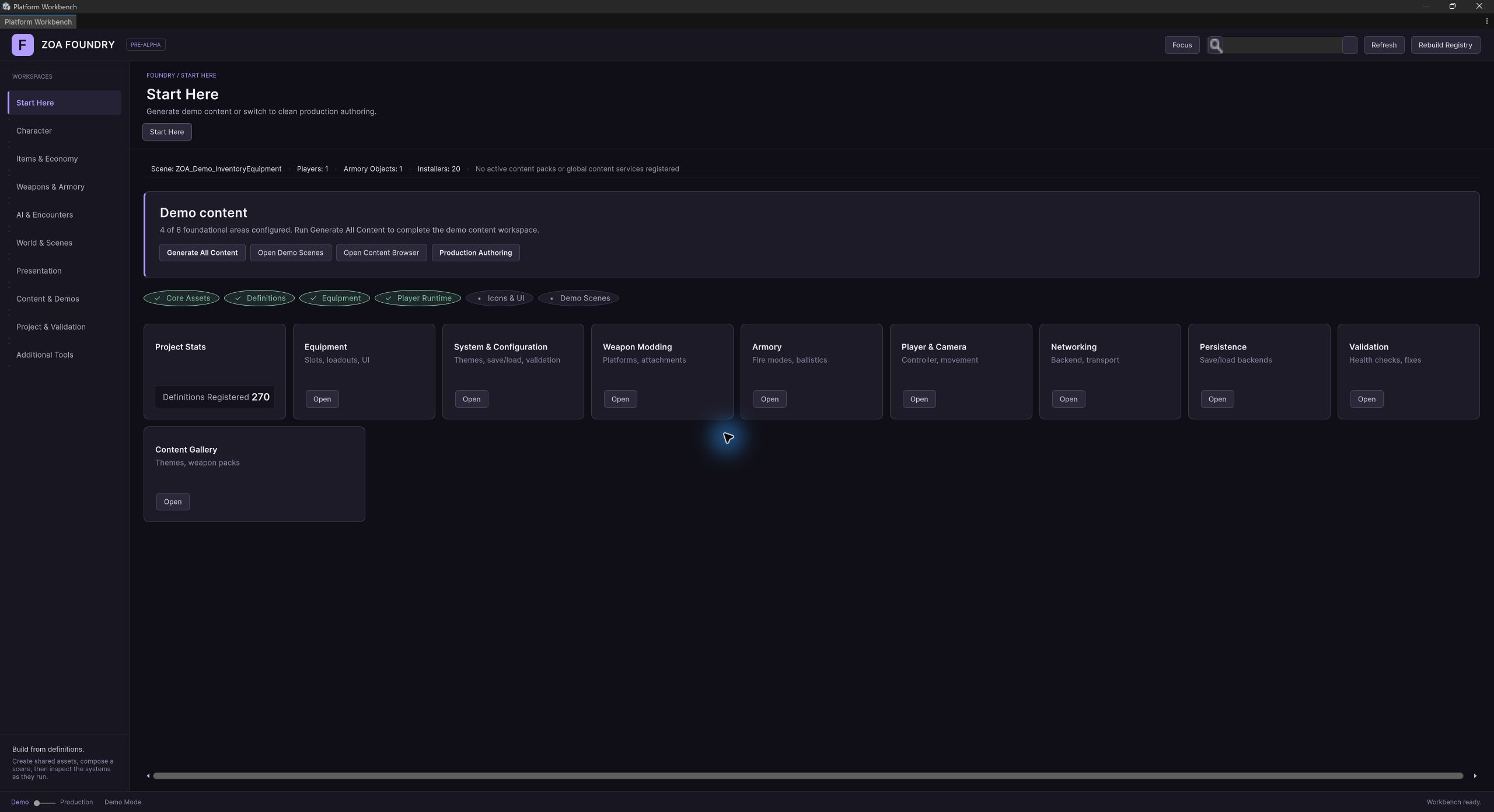
The Workbench brings Foundry’s tools into a single Unity window. Choose a workspace in the sidebar, select a system from its tabs, and open a wizard or asset browser. Search finds modules across the installed packages.
Start at Tools → ZOA → Start Here. The default Foundry theme applies throughout the shell, and Focus mode makes more room for the current tool. Wizards use a shared step rail, validation tray, and preview panel.
Tooling
Editor tools
Platform Workbench
Tools > ZOA > Advanced > Workbench > Open
The shell itself. Subsystem rail, module tabs, capability strips, search, an expert/beginner experience slider, and three chrome densities.
Start Here
Tools > ZOA > Start Here
Switches the shell into Demo workflow mode, clears expert mode, and lands on the start-here module: project state, setup checks, and the one-click full system builder.
Workflow deep links
Tools > ZOA > Character, Items & Economy, Weapons & Armory, AI, Environment, Rendering
Top-level menu entries that open the Workbench directly on a workflow hub. Mirrored under Tools > ZOA > Advanced > Workbench > Workflows, which additionally carries System & Configuration.
Create Gameplay Scene
Tools > ZOA > Advanced > Build > World > Create Gameplay Scene...
Unified scene wizard with From Scratch, Augment Existing, and Validate modes. Delegates to the scene authoring and validation services, and yields to a registered provisioning provider when one accepts the request.
Initialize Configuration
Tools > ZOA > Advanced > Build > Quick Start > Initialize Configuration
Creates GameDatabase, NetworkSettings and SaveBackendSettings, skipping assets that already exist, then populates the database.
Create Default Player
Tools > ZOA > Advanced > Build > Quick Start > Create Default Player
Demo-mode player wizard. Emits the default definition bundle and a wired player prefab, with optional squad presentation for top-down profiles.
Create Game Scene
Tools > ZOA > Advanced > Build > Quick Start > Create Game Scene
Scaffolds an evaluation scene with floor, lighting, camera, spawn point, save system and GameDatabase loader.
Apply Required Project Settings
Tools > ZOA > Advanced > Build > Project > Apply Required Project Settings
Writes the layers, tags and ignored collision pairs ZOA requires, including anything downstream packages registered through ZOAProjectConfigurator.
Validate Project Settings
Tools > ZOA > Advanced > Validate > Project > Validate Project Settings
Reports missing layers, tags and collision ignores without changing anything.
Run Asmdef Governance Check
Tools > ZOA > Advanced > Validate > Run Asmdef Governance Check
Scans every assembly definition under Packages for runtime/editor/test split consistency, adapter isolation, legacy hard references in core assemblies, and forbidden cross-boundary references.
Run Release Gates
Tools > ZOA > Advanced > Validate > Run Release Gates
Runs the full release checklist and reports pass or fail per gate with a P0/P1 priority. Also available headless as ReleaseGateValidator.RunCI.
Clean Install Validation
Tools > ZOA > Advanced > Validate > Clean Install
Checks that a fresh install is correctly wired: GameDatabase present and populated, network and save settings, player prefab, inventory definitions, equipment loadout, weapon definitions and operation profiles. Failed checks carry a fix action.
Theme Studio
Tools > ZOA > Advanced > Define > UI > Themes > Theme Studio
Select, preview, duplicate and edit the canonical project-wide UI theme.
Create Genre Bundle
Tools > ZOA > Advanced > Generate > Content > Create Genre Bundle…
Authors a GenreBundleDefinition through Identity, Content, Look and Review steps, writing the asset through a SerializedObject so Undo records correctly.
Reset First Run Detection
Tools > ZOA > Advanced > Maintain > Workbench > Reset First Run Detection
Clears the EditorPrefs keys that stop the Workbench auto-opening on a clean project, so the first-run experience can be re-tested.
From the development project
Screenshots
Declared ZOA dependencies (2)
Referenced by ZOA manifests (1)
How it works
Concepts
Modules are discovered at load
A Workbench page is a class implementing IZOAWorkbenchModule, decorated with ZOAWorkbenchModuleAttribute. On every rebuild the shell walks TypeCache.GetTypesDerivedFrom<IZOAWorkbenchModule>(), instantiates each concrete type with its parameterless constructor, and sorts the result by Order then Title. A module that throws during construction is logged and skipped rather than taking the window down with it.
The interface is thin. Id, Title, Subtitle and Order describe the tab; SearchText is the blob the shell's search field matches against, so a module can be found by words that never appear in its title. Build(ZOAWorkbenchContext) returns the page's VisualElement, and Refresh(context, root) is called when the shell wants the already-built view updated in place.
FoundryModuleManifest is the read-only view of the same discovery, useful when you want to enumerate what is installed without opening the window. It also derives a package hint from each module's assembly name, mapping ZOA.Equipment.Unity.Editor back to com.zoa.equipment, so diagnostics can attribute a page to the package that shipped it.
Workflow hubs group modules without coupling them
Setting WorkflowId on the module attribute attaches a module to one of the canonical hubs: workflow.character, workflow.ai, workflow.items-economy, workflow.weapons-armory, workflow.environment, workflow.rendering, or workflow.system-configuration. The hub surfaces its children from a capability strip; the module still exists as itself and behaves exactly as it did before.
Modules keep stable IDs so links can open a particular tool even when it belongs to a workspace. The navigation catalogue determines the sidebar grouping; the module’s WorkflowId also supplies its relationship to workflow hubs.
WorkbenchNavigationCatalog assigns each module to one workspace. Character, Items & Economy, Weapons & Armory, AI & Encounters, World & Scenes, Presentation, Content & Demos, and Project & Validation organize the installed tools. Unassigned modules appear in Additional Tools.
Capabilities: three ways to put a tool on a page
Most modules present a strip of related tools rather than one screen, and CapabilityStripBuilder is the shared implementation of that pattern. Each entry has an id, a label, a tooltip, and one of three modes.
AddEmbedded takes the full type name of an EditorWindow as a string and asks WorkbenchCapabilityHost to instantiate it and mount its root visual element inside the Workbench. Because the type is named by string rather than referenced, a module can embed a window from a package it does not compile against. AddNative takes a Func<ZOAWorkbenchContext, VisualElement> and builds the surface directly, which is the right choice for anything authored for the Workbench in the first place. AddFallback takes a menu path and an action label for capabilities that cannot be embedded, and the strip renders a button that runs EditorApplication.ExecuteMenuItem on that path.
Every entry can also declare an Owner, the canonical service or window responsible for that capability. Cards route into the owner rather than reimplementing it, which is the rule that stopped the stack accumulating four slightly different player builders.
Wizards are UI over services
Every Workbench wizard splits in two. The EditorWindow owns layout, step order, validation display and nothing else. The asset emission lives behind an interface in ZOA.Workbench.Editor.Services: IWorkbenchConfigAuthoringService, IWorkbenchPlayerAuthoringService, IWorkbenchSceneAuthoringService, IWorkbenchSceneValidationService.
A Workbench card and a wizard invoked from the menu therefore emit identical assets, because both call the same service with the same request object. The services are also testable without a window, which the package's WizardServicePurityTests assert.
IWorkbenchPlayerAuthoringService carries the split one step further: BuildPlayerDefinitions and BuildPlayerPrefab are separately callable, so a wizard can offer independent step controls and a caller that already has definitions can skip straight to the prefab.
Scene provisioning is delegated to whoever owns the scene
Workbench can scaffold a plain gameplay scene itself, but a package with a richer pipeline can take over. IWorkbenchSceneProvisioningProvider declares an Id, a Priority, a CanProvision(request) predicate and TryGenerateScene. Providers register themselves into the static WorkbenchSceneProvisioningRegistry, which sorts by descending priority and runs the first provider that accepts the request.
This is how the demo package's generated showcase scenes end up behind the Workbench's Create Game Scene action rather than living in a separate menu. Workbench still handles final save and open targeting; the provider owns everything about what goes in the scene.
The shell knows what is in your open scenes
IWorkbenchSceneContextService publishes a SceneSnapshot describing the open scene set, rebuilt on hierarchy change behind a debounce. Current is never null, falling back to SceneSnapshot.Empty before the first rebuild, and SnapshotChanged hands subscribers the new snapshot directly so they never race a concurrent rebuild by reading Current.
The snapshot is filled by ISceneContextProvider implementations, one per package, discovered the same way modules are. A provider declares a Category, an Order, and a Scan over the open scenes that yields SceneEntry values. Canonical categories live on SceneEntryCategory: players, weapon-racks, installers, interactables, inventories, active-content. A provider may invent its own key and the Workbench renders it under an Other bucket.
SceneEntry carries a display name, an optional GameObject target, a list of key/value facts rendered as a compact grid, and an optional primary action with a label. That is enough for a hub card to say what is in the scene and offer the one thing you would want to do with it. SceneContextStatus distinguishes Unknown, Pending, Ready and NoScene, so a hub can show a scanning hint instead of falsely claiming the scene is empty.
Report progress through a shared interface
IFoundryProgressReporter is a three-message contract: Begin(headline, canCancel), Report(fraction, detail) and End, plus an IsCancelled flag. A fraction below zero means indeterminate, so the same call site drives a determinate bar or a spinner.
FoundryProgressRouter covers the code that predates the contract. It intercepts progress calls and routes them into the Workbench's overlay when one is registered, falling back to Unity's modal progress popup when a generator is invoked from the menu with no window open. Long generators therefore report into a cancellable overlay inside the shell without knowing the shell exists.
Setup
Workflow
- 01
Open the shell
Tools > ZOA > Start Here on a fresh project, or Tools > ZOA > Advanced > Workbench > Open once you know your way round. The top-level Tools > ZOA menu carries workflow entries that deep-link straight into a hub: Character, Items & Economy, Weapons & Armory, AI, Environment, Rendering. Utilities live under Tools > ZOA > Advanced, which keeps the first menu down to the workflow entries.
- 02
Let it bootstrap
Opening the window runs a staged bootstrap across several delayCall frames: build the definition registry from the active GameDatabase, discover modules, then resolve whatever route was requested. If no GameDatabase is found the shell reports degraded mode and keeps going, so a project that has not been configured yet can still reach Start Here.
- 03
Configure the project
Tools > ZOA > Advanced > Validate > Project > Validate Project Settings reports missing layers, tags and collision-matrix entries. Tools > ZOA > Advanced > Build > Project > Apply Required Project Settings writes them. Both go through ZOAProjectConfigurator, and both pick up whatever downstream packages registered at load.
- 04
Build the baseline
From Start Here, run the full system builder. It walks core configuration, inventory definitions, equipment definitions, the player prefab, UI and prefabs, scene scaffolding, and a final GameDatabase rebuild. Individual steps are also available as wizards: Tools > ZOA > Advanced > Build > Quick Start > Initialize Configuration, Create Default Player, Create Game Scene.
- 05
Author a scene
Tools > ZOA > Advanced > Build > World > Create Gameplay Scene... opens the unified scene wizard with three modes. From Scratch creates a new scene and scaffolds every essential. Augment Existing adds only what the open scene is missing. Validate is a read-only readiness checklist with a one-click Augment to Fix. If a package has registered a provisioning provider that accepts the request, it generates the scene instead.
- 06
Contribute your own page
Add a class implementing IZOAWorkbenchModule in your package's editor assembly, tag it with ZOAWorkbenchModuleAttribute, reference ZOA.Workbench.Unity.Editor, and rebuild. Give it a WorkflowId if it belongs to an existing hub. Nothing else registers it.
- 07
Gate the build
Tools > ZOA > Advanced > Validate > Run Asmdef Governance Check, Run Release Gates, and Clean Install cover assembly boundaries, the release checklist, and whether a fresh install is correctly wired. Each has a batch-mode entry point, so the same checks run in CI through CIBuildPipeline.
Reference
Key types
IZOAWorkbenchModule
interface
The contract a package implements to contribute a page. Discovered via TypeCache; needs a public parameterless constructor.
- string Id { get; }
- string Title { get; }
- string Subtitle { get; }
- int Order { get; }
- string SearchText { get; }
- VisualElement Build(ZOAWorkbenchContext context)
- void Refresh(ZOAWorkbenchContext context, VisualElement root)
ZOAWorkbenchModuleAttribute
class
Declares a class as a Workbench module and optionally attaches it to a workflow hub. Class-only, not inherited, single use.
- ZOAWorkbenchModuleAttribute(string id, string title, int order)
- string WorkflowId { get; set; }
ZOAWorkbenchContext
class
Everything a module is handed at Build time: the host window, the database and registry, navigation callbacks, the current mode, and the live scene snapshot service.
- EditorWindow HostWindow { get; set; }
- GameDatabase GameDatabase { get; set; }
- IDefinitionRegistry DefinitionRegistry { get; set; }
- Action<string> SetStatus { get; set; }
- Action<string> SelectModule { get; set; }
- Action<string, string> Navigate { get; set; }
- Action<string> SelectCapability { get; set; }
- bool IsExpertMode { get; set; }
- WorkbenchWorkflowMode WorkflowMode { get; set; }
- IWorkbenchSceneContextService SceneContext { get; set; }
FoundryModuleManifest
class
Static registry of discovered modules with metadata. Use it to enumerate what is installed without opening the window.
- static IReadOnlyList<ModuleEntry> All { get; }
- static void Refresh()
- static ModuleEntry FindById(string id)
- static int Count { get; }
CapabilityStripBuilder
class
Fluent builder for the capability strip. Three ways to attach a tool: an embedded EditorWindow named by string, a native VisualElement builder, or a menu-path fallback.
- CapabilityStripBuilder(string moduleId)
- CapabilityStripBuilder AddEmbedded(string id, string label, string tooltip, string windowTypeName, WorkbenchCapabilityRenderMode renderMode, string owner = null)
- CapabilityStripBuilder AddNative(string id, string label, string tooltip, Func<ZOAWorkbenchContext, VisualElement> nativeBuilder, string owner = null)
- CapabilityStripBuilder AddFallback(string id, string label, string tooltip, string fallbackMenuPath, string fallbackActionLabel, string owner = null)
- VisualElement Build(ZOAWorkbenchContext context)
- void SelectCapability(string id, ZOAWorkbenchContext context)
- string SelectedId { get; }
WorkbenchCapabilityHost
class
Resolves an EditorWindow type by name, instantiates it, and mounts its view inside the Workbench. Disposes embedded handles on play-mode change and before assembly reload.
- static bool TryCreateEmbeddedCapability(string windowTypeName, WorkbenchCapabilityRenderMode renderMode, out VisualElement view, out IDisposable handle, out string error)
- static bool TryMountNativeCapability(...)
- static void DisposeMountedCapability(VisualElement owner)
WorkbenchCapabilityRenderMode
enum
UiToolkit or Imgui. Tells the host how to mount an embedded window's content.
FoundryWizardShell
class
The three-column wizard layout every Foundry wizard is built in: step rail, main content, preview dock, with an issue tray beneath. A UxmlElement, so it can also be declared in UXML.
- FoundryWizardShell AddStep(string title, string description, Func<VisualElement> contentBuilder, Func<List<FoundryIssue>> validator = null)
- void Begin()
- void GoToStep(int index)
- List<FoundryIssue> RunStepValidation()
- FoundryIssueTray IssueTray { get; }
- FoundryPreviewDock PreviewDock { get; }
- FoundryStepRail StepRail { get; }
- IFoundryProgressReporter Progress { get; }
- Task ShowProgressAsync(...)
- event Action Completed
- event Action Cancelled
- event Action<int> StepChanged
FoundryIssueTray
class
Collapsible validation tray. Issues carry an optional quick fix, and the tray offers a Fix All button that runs every available one.
- void AddIssue(FoundryIssue issue)
- void AddIssues(IEnumerable<FoundryIssue> issues)
- void Clear()
- IReadOnlyList<FoundryIssue> Issues { get; }
- bool HasErrors { get; }
- bool HasIssues { get; }
FoundryIssue
class
One validation result. The static factories are the normal way to build them, and every mechanical remedy should be attached as a quick fix rather than only described.
- static FoundryIssue Error(string message, Action quickFix = null, string fixLabel = "Fix")
- static FoundryIssue Warning(string message, Action quickFix = null, string fixLabel = "Fix")
- static FoundryIssue Info(string message)
- FoundryIssueSeverity Severity { get; }
- string Message { get; }
- Action QuickFix { get; }
- string QuickFixLabel { get; }
FoundryStepRail
class
Vertical numbered step indicator with click-to-navigate for completed and current steps. Arrow-key navigable.
- void AddStep(string title, string description = null)
- void SetActiveStep(int index)
- void MarkCompleted(int index)
- event Action<int> StepClicked
FoundryPreviewDock
class
Collapsible right-hand panel for live previews and summaries. Takes custom content, a text summary, or a key/value grid.
- void SetTitle(string title)
- void SetContent(VisualElement content)
- void SetSummary(string title, string body)
- void SetKeyValueSummary(string title, params (string key, string value)[] entries)
- void ShowPlaceholder(string message = null)
- void SetCollapsed(bool collapsed)
IFoundryProgressReporter
interface
UI-neutral progress contract handed to long-running work. A negative fraction means indeterminate; tests substitute the no-op implementation.
- void Begin(string headline, bool canCancel = false)
- void Report(float fraction, string detail = null)
- void End()
- bool IsCancelled { get; }
FoundryProgressRouter
class
Routes legacy editor progress calls into the active Workbench overlay when one is registered, and to Unity's modal popup when the caller is running standalone from a menu.
- static void RegisterReporter(IFoundryProgressReporter reporter)
- static void UnregisterReporter(IFoundryProgressReporter reporter)
- static void DisplayProgressBar(string title, string info, float progress)
- static bool DisplayCancelableProgressBar(string title, string info, float progress)
- static void ClearProgressBar()
- static bool HasActiveWorkbenchReporter { get; }
IWorkbenchConfigAuthoringService
service
Creates the core configuration assets: GameDatabase, NetworkSettings, SaveBackendSettings. Skips what already exists and populates the database.
- WorkbenchConfigAuthoringResult InitializeConfiguration(WorkbenchConfigAuthoringRequest request)
- bool AllConfigurationAssetsExist()
- string GetSaveBackendSettingsPath()
IWorkbenchPlayerAuthoringService
service
Builds the default-player definition bundle and the player prefab as two independently callable operations.
- WorkbenchPlayerDefinitionsResult BuildPlayerDefinitions(WorkbenchPlayerDefinitionsRequest request)
- WorkbenchPlayerPrefabResult BuildPlayerPrefab(WorkbenchPlayerPrefabRequest request)
IWorkbenchSceneAuthoringService
service
Creates and scaffolds a gameplay scene: environment essentials, manager hierarchy, then save to disk.
- WorkbenchSceneAuthoringResult BuildScene(WorkbenchSceneAuthoringRequest request)
IWorkbenchSceneValidationService
service
The read-only inverse of the authoring service. Reports which scene essentials are present, and never mutates the scene or the asset database.
- WorkbenchSceneValidationResult ValidateActiveScene()
IWorkbenchSceneProvisioningProvider
interface
Extension point letting a package take over scene generation with its own pipeline. Highest priority provider that accepts the request wins.
- string Id { get; }
- int Priority { get; }
- bool CanProvision(WorkbenchSceneAuthoringRequest request)
- bool TryGenerateScene(WorkbenchSceneAuthoringRequest request, out string error)
WorkbenchSceneProvisioningRegistry
class
Static, lock-guarded provider list sorted by descending priority. Duplicate provider types are ignored on register.
- static void Register(IWorkbenchSceneProvisioningProvider provider)
- static void Unregister<TProvider>()
- static bool TryGenerateScene(WorkbenchSceneAuthoringRequest request, out string providerId, out string error)
IWorkbenchSceneContextService
service
Live view of the open scene set. Read Current for a snapshot, subscribe to SnapshotChanged to stay current without polling.
- SceneSnapshot Current { get; }
- event Action<SceneSnapshot> SnapshotChanged
- void RequestImmediateRebuild()
- void RequestRebuild()
ISceneContextProvider
interface
Per-package scene scanner. Needs a public parameterless constructor and must be allocation-aware, since Scan can run several times a second during hierarchy churn.
- string Category { get; }
- int Order { get; }
- IEnumerable<SceneEntry> Scan(IReadOnlyList<Scene> openScenes)
SceneSnapshot
class
Immutable result of one rebuild: status, active and open scene names, the entries, and the capture time.
- static readonly SceneSnapshot Empty
- SceneContextStatus Status { get; }
- string ActiveSceneName { get; }
- string ActiveScenePath { get; }
- IReadOnlyList<string> OpenSceneNames { get; }
- IReadOnlyList<SceneEntry> Entries { get; }
- DateTime CapturedUtc { get; }
- IEnumerable<SceneEntry> EntriesInCategory(string category)
- int CountInCategory(string category)
SceneEntry
class
One thing found in the scene: a category, a stable id, a display name, an optional GameObject, a fact grid, and optional ping and primary actions.
- string Category { get; }
- string Id { get; }
- string DisplayName { get; }
- GameObject Target { get; }
- IReadOnlyList<SceneEntryFact> Facts { get; }
- Action PingAction { get; }
- Action PrimaryAction { get; }
- string PrimaryActionLabel { get; }
SceneEntryCategory
class
Canonical category keys as string constants rather than an enum, so downstream packages can add categories without touching this assembly.
- const string Players = "players"
- const string WeaponRacks = "weapon-racks"
- const string Installers = "installers"
- const string Interactables = "interactables"
- const string Inventories = "inventories"
- const string ActiveContent = "active-content"
SceneContextStatus
enum
Unknown, Pending, Ready, NoScene. Lets a hub tell an empty scene apart from one that has not been scanned yet.
WorkbenchWorkflowMode
enum
Demo or Production. Demo routes new users into Start Here and biases generated assets toward evaluation content; Production is the clean authoring path.
IFeatureCompletenessValidator
interface
A per-package completeness check surfaced on the Workbench dashboard. Returns FoundryIssue values, so every mechanical remedy arrives as a quick fix.
- string ValidatorId { get; }
- string DisplayName { get; }
- string SystemArea { get; }
- List<FoundryIssue> Validate()
FeatureCompletenessService
class
Discovers and runs every validator with exception isolation, so one broken validator becomes its own error row rather than killing the sweep.
- static List<IFeatureCompletenessValidator> DiscoverValidators()
- static List<FeatureCompletenessResult> RunAll()
ZOAProjectConfigurator
class
Owns the project-level settings ZOA requires: layers, tags and the physics collision matrix. Other packages register their own requirements from an InitializeOnLoadMethod rather than editing this list.
- static ConfigResult Apply()
- static ValidationReport Validate()
- static void RegisterTags(params string[] tags)
- static void RegisterLayers(params string[] layers)
- static void RegisterIgnoredCollisionPairs(params (string LayerA, string LayerB)[] pairs)
- static readonly string[] RequiredLayers
- static readonly string[] RequiredTags
FoundrySystemBuilder
class
The one-click full-stack builder behind Start Here. Runs seven phases and returns a BuildResult listing created assets, warnings, and the emitted prefabs and scene path.
- static readonly BuildPhase[] Phases
- static bool IsCleanInstall()
- class BuildResult { bool Success; int PhasesCompleted; List<string> CreatedAssets; List<string> Warnings; GameObject PlayerPrefab; string ScenePath; }
ZOAEditorMenu
class
The canonical menu contract. Every ZOA menu path is composed from these constants, and the menu-hierarchy tests assert against IsCanonicalPath.
- const string Root = "Tools/ZOA"
- const string StartHere, Player, AI, ItemsEconomy, Weapons, Environment, Rendering, Advanced
- const string Workbench, Define, Build, Generate, Validate, Maintain, Help
- static bool IsCanonicalPath(string menuPath)
- static bool IsWorkbenchShortcutPath(string menuPath)
Usage
Examples
using UnityEngine.UIElements;
using ZOA.Workbench.Unity.Editor.Utilities;
using ZOA.Workbench.Unity.Editor.Workbench;

namespace MyStudio.Ballistics.Editor
{
    [ZOAWorkbenchModule("ballistics", "Ballistics", 220,
        WorkflowId = "workflow.weapons-armory")]
    public sealed class BallisticsWorkbenchModule : IZOAWorkbenchModule
    {
        private CapabilityStripBuilder _strip;

        public string Id => "ballistics";
        public string Title => "Ballistics";
        public string Subtitle => "Tune drag curves and penetration tables.";
        public int Order => 220;

        // The shell matches this blob, so list the words an author would
        // actually type: none of them have to appear in the title.
        public string SearchText => "ballistics drag penetration muzzle velocity falloff";

        public VisualElement Build(ZOAWorkbenchContext context)
        {
            _strip = new CapabilityStripBuilder("ballistics")
                .AddNative(
                    "drag-curves",
                    "Drag Curves",
                    "Edit per-calibre drag curves.",
                    BuildDragCurveEditor)
                .AddEmbedded(
                    "penetration",
                    "Penetration Tables",
                    "Author material penetration tables.",
                    "MyStudio.Ballistics.Editor.PenetrationTableWindow",
                    WorkbenchCapabilityRenderMode.UiToolkit);

            return _strip.Build(context);
        }

        public void Refresh(ZOAWorkbenchContext context, VisualElement root)
        {
            if (_strip != null && !string.IsNullOrEmpty(_strip.SelectedId))
                _strip.SelectCapability(_strip.SelectedId, context);
        }

        private VisualElement BuildDragCurveEditor(ZOAWorkbenchContext context)
        {
            var root = new VisualElement();
            root.Add(new Label($"Definitions loaded: {context.GameDatabase?.Count ?? 0}"));
            return root;
        }
    }
}using System.Collections.Generic;
using UnityEditor;
using UnityEngine.UIElements;
using ZOA.Workbench.Unity.Editor.Primitives;
public sealed class DragCurveWizard : EditorWindow
{
private FoundryWizardShell _shell;
private void CreateGUI()
{
_shell = new FoundryWizardShell();
_shell.AddStep("Identity", "Name and calibre",
contentBuilder: BuildIdentityStep,
validator: ValidateIdentity);
_shell.AddStep("Curve", "Sample the drag curve",
contentBuilder: BuildCurveStep);
_shell.Completed += Emit;
_shell.Begin();
rootVisualElement.Add(_shell);
}
private List<FoundryIssue> ValidateIdentity()
{
var issues = new List<FoundryIssue>();
if (string.IsNullOrWhiteSpace(_calibre))
{
// Every mechanical remedy ships as a quick fix, so the tray's
// Fix All button can resolve it without the author leaving the step.
issues.Add(FoundryIssue.Error(
"Calibre is required.",
quickFix: () => _calibre = "9x19",
fixLabel: "Use 9x19"));
}
return issues;
}
private void Emit()
{
// Long work reports through the shell's overlay, which is cancellable
// and lives inside the Workbench when the wizard is hosted there.
var progress = _shell.Progress;
progress.Begin("Emitting drag curves", canCancel: true);
for (int i = 0; i < _curves.Count; i++)
{
if (progress.IsCancelled) break;
progress.Report(i / (float)_curves.Count, _curves[i].Name);
WriteCurveAsset(_curves[i]);
}
progress.End();
AssetDatabase.SaveAssets();
}
private string _calibre;
private readonly List<CurveDraft> _curves = new();
private VisualElement BuildIdentityStep() => new VisualElement();
private VisualElement BuildCurveStep() => new VisualElement();
private void WriteCurveAsset(CurveDraft draft) { }
private sealed class CurveDraft { public string Name; }
}using UnityEditor;
using ZOA.Workbench.Editor.Services;
[InitializeOnLoad]
internal static class ArenaSceneProvisioningBootstrap
{
static ArenaSceneProvisioningBootstrap()
{
WorkbenchSceneProvisioningRegistry.Register(new ArenaSceneProvisioningProvider());
}
}
internal sealed class ArenaSceneProvisioningProvider : IWorkbenchSceneProvisioningProvider
{
public string Id => "mystudio.arena";
// Providers are sorted by descending priority; the first one whose
// CanProvision returns true wins, so a higher number pre-empts the
// generic Workbench scaffold.
public int Priority => 100;
public bool CanProvision(WorkbenchSceneAuthoringRequest request) =>
request != null;
public bool TryGenerateScene(WorkbenchSceneAuthoringRequest request, out string error)
{
error = null;
// Build the scene with your own pipeline and leave it active.
// Workbench handles save and open targeting from here.
return true;
}
}using System.Collections.Generic;
using UnityEngine.SceneManagement;
using ZOA.Workbench.Editor.Services.SceneContext;
public sealed class TurretSceneContextProvider : ISceneContextProvider
{
// Bespoke keys are legal; the Workbench renders unknown categories
// under an "Other" bucket rather than dropping them.
public string Category => "turrets";
public int Order => 50;
public IEnumerable<SceneEntry> Scan(IReadOnlyList<Scene> openScenes)
{
var entries = new List<SceneEntry>();
foreach (var scene in openScenes)
{
if (!scene.isLoaded) continue;
foreach (var root in scene.GetRootGameObjects())
{
foreach (var turret in root.GetComponentsInChildren<Turret>(true))
{
entries.Add(new SceneEntry(
category: Category,
id: turret.GetInstanceID().ToString(),
displayName: turret.name,
target: turret.gameObject,
facts: new[]
{
new SceneEntryFact("Calibre", turret.Calibre),
new SceneEntryFact("Arc", $"{turret.ArcDegrees}°"),
}));
}
}
}
return entries;
}
}Integration
Behavior to account for
See also