Editor tools
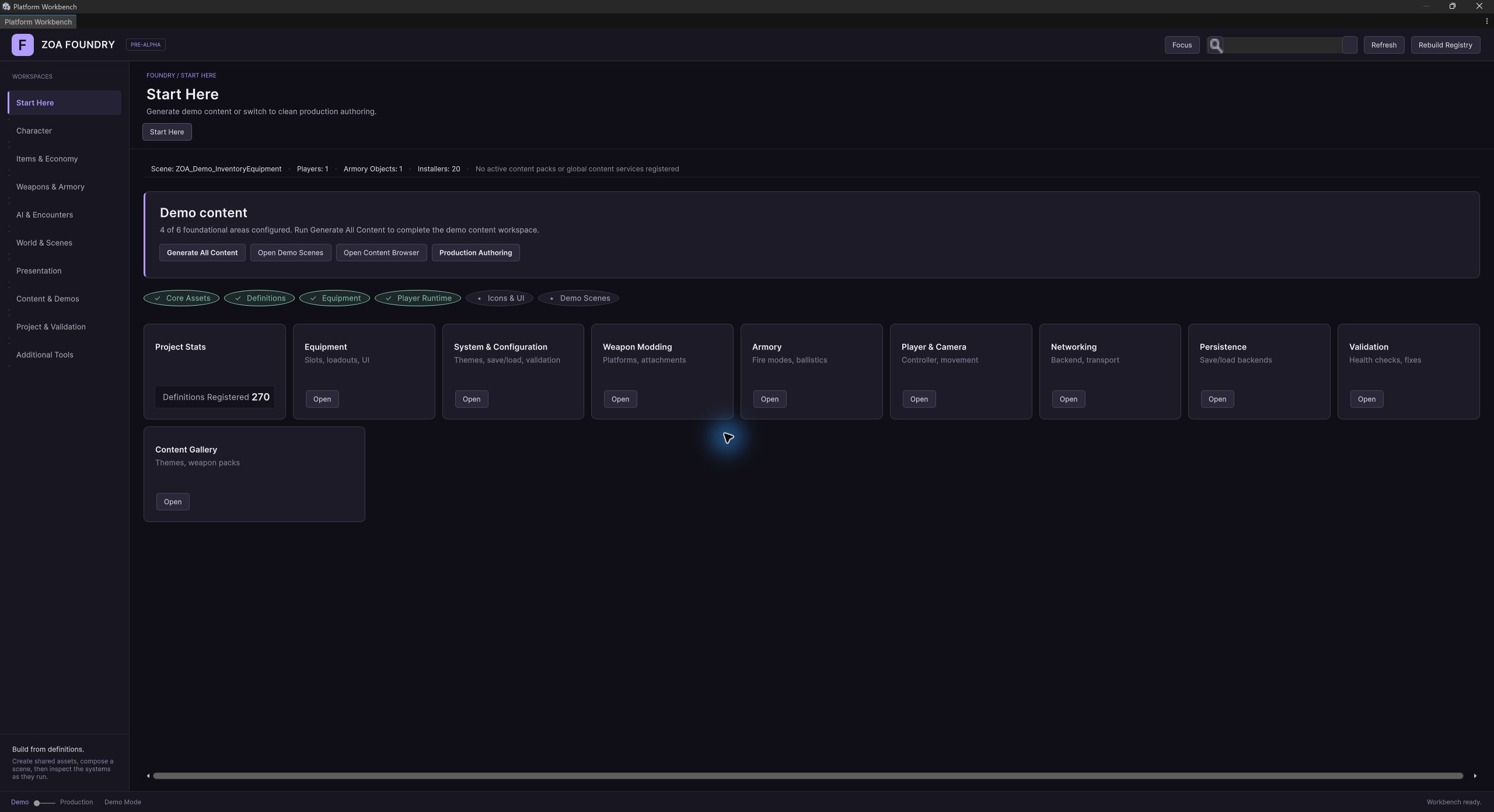
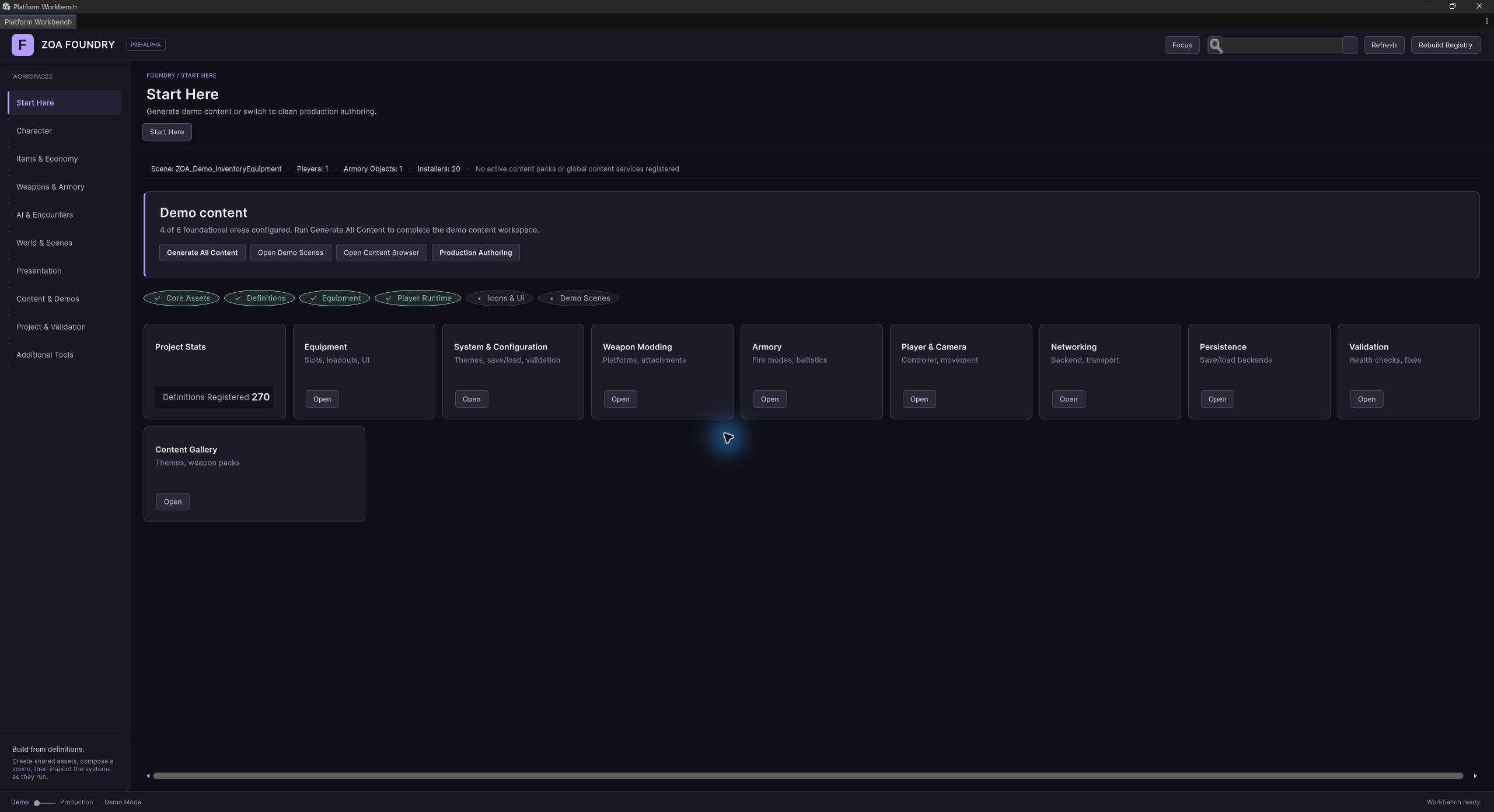
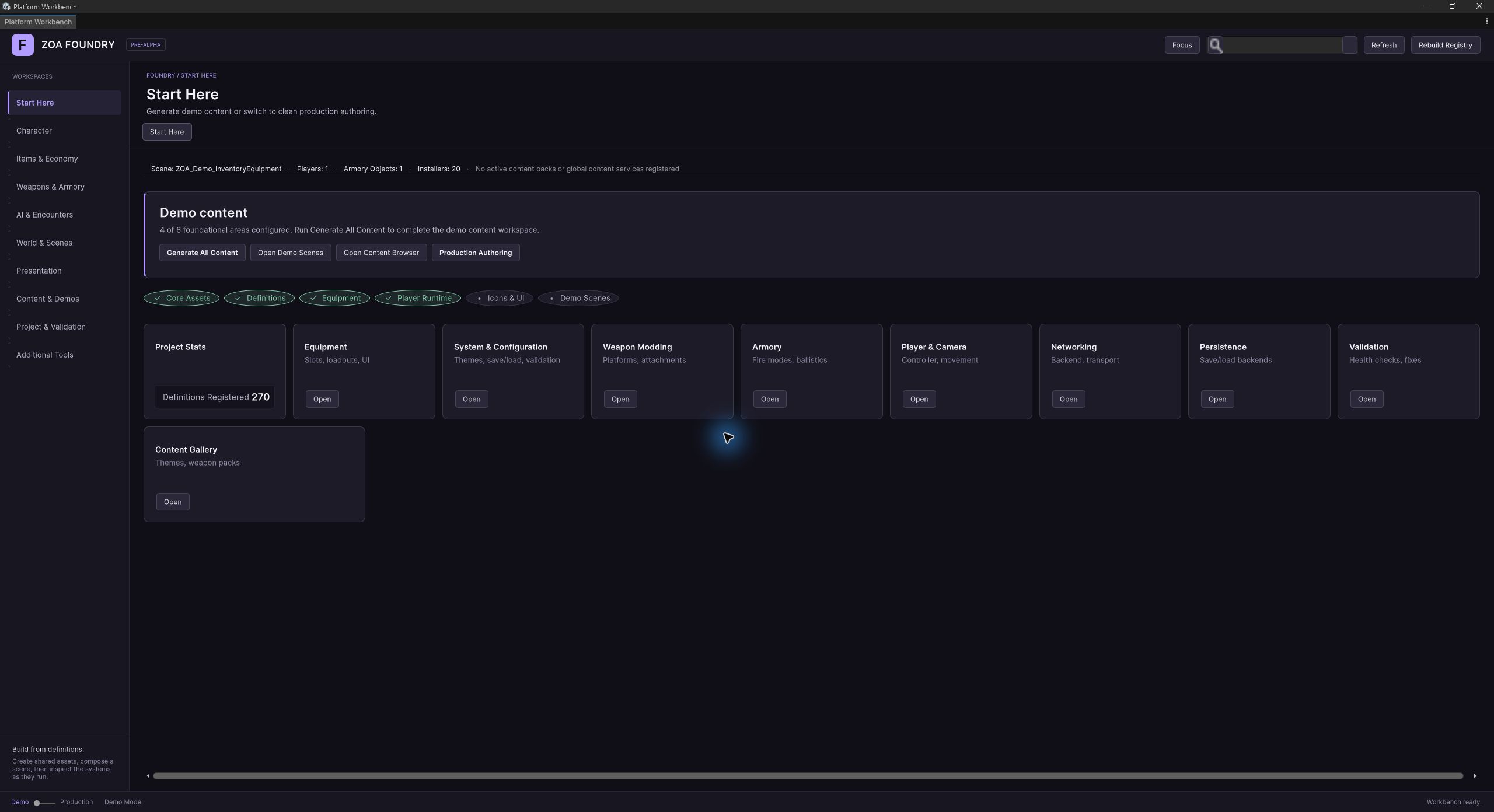
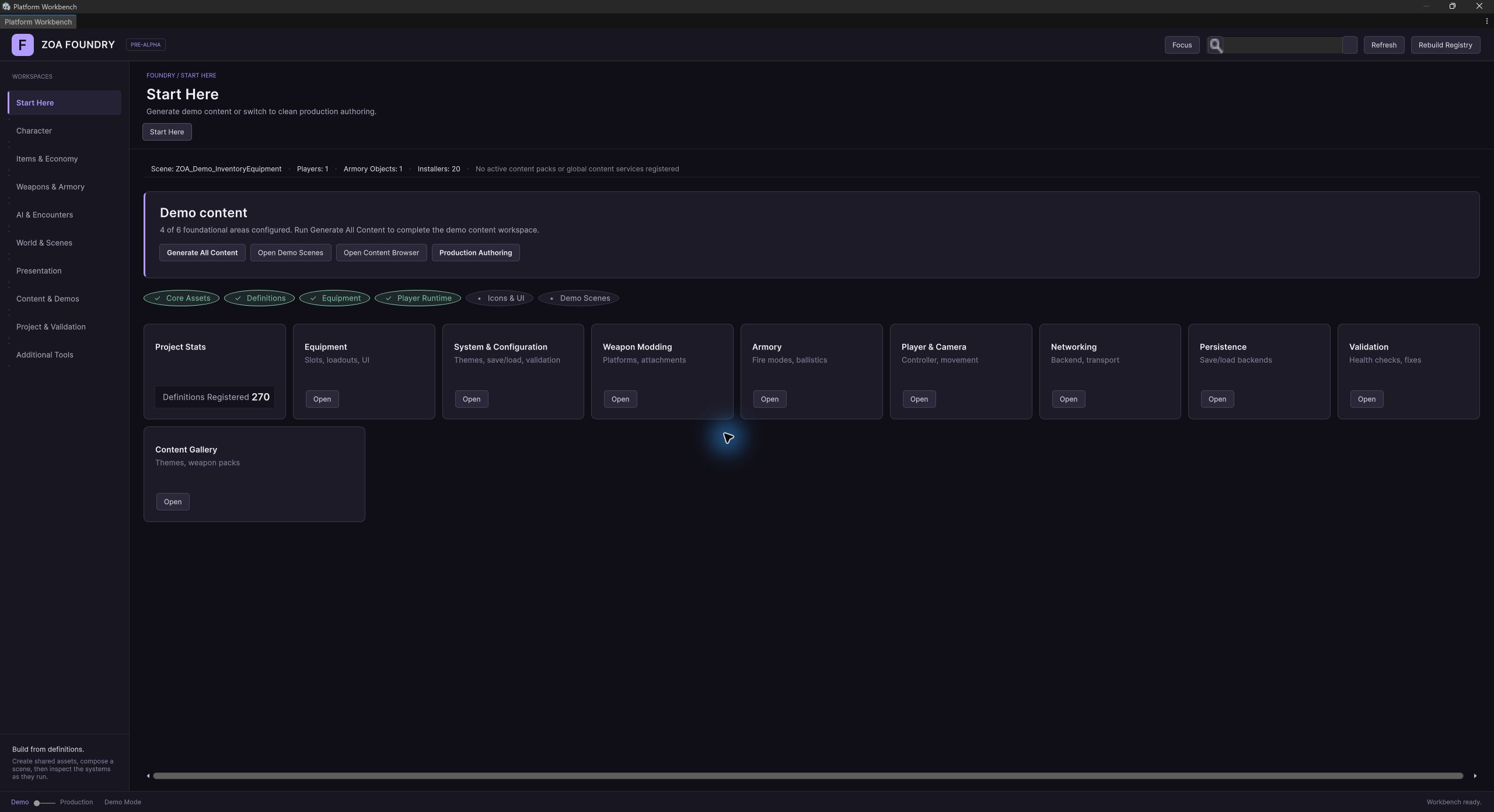
The Workbench is where you create Foundry content. Choose what you’re building, open its tools, and check the assets before trying them in a scene.
Find your way around
The left sidebar groups tools into workspaces. Tabs across the top select a system within that workspace; the tool bar below opens its wizards and browsers. Search looks across installed modules, so you can find a tool without knowing where it lives.
ZOA Foundry is the default theme, with dark surfaces and violet accents. Open Presentation → UI Theming to customize it or choose ZOA Swarms. Focus mode gives the current tool more room.
Compose a player and camera
Start in Character → Player & Camera → Player Control. Choose a control style and camera view, then configure the player prefab. Nucleon includes profiles for first-person shooters, third-person games, and top-down RPGs, with movement modules selected for each profile.
From the same workspace, you can set up input bindings, build animator controllers, and configure first-person arms or a full-body rig. The scene’s spawn request points to the prefab you want to use.
The output is a configured rig or prefab plus the authored assets used by the selected workflow. Gameplay scenes can spawn the prefab through a PlayerSpawnRequest.
Read the package reference →Define items, containers, and equipment slots
Decide how much space an item takes, how many can stack, and where it belongs. Create Item walks you through the definition; Create Inventory lets you choose a container’s shape, capacity, and placement rules.
You’ll find both wizards under Items & Economy → Inventory, alongside browsers for existing assets. Equipment Slots, recipes, vendors, and loot tables are nearby. Use Icon Studio to render item models into inventory icons.
Equipment slots reuse inventory definitions and acceptance rules. A head slot can accept items carrying the required tag; a backpack can use a different shape and weight constraint.
Read the package reference →Build and check a weapon
Open Weapons & Armory → Armory → Create Weapon. The wizard takes you through the definition, model, mount points, and attachments, then firing settings and presentation. Its preview and summary stages help you check the draft before creating assets.
Use Weapons to edit existing definitions. Operation Profile Composer controls shared firing and reload behavior, while Weapon Modding provides the classification and attachment tools. Create the sets, platforms, and other categories your weapons will reference as you need them.
Several weapons can share a WeaponOperationProfileDefinition. It combines firing and delivery settings with ballistics, recoil, reloads, heat, and jams.
Read the package reference →Bring a folder of models into the weapon workflow
Batch Weapon Ingest brings in a folder of weapon models at once. It scans FBX hierarchies and suggests weapon and attachment classifications from their names. Review those suggestions in Resolve, especially when the models use unfamiliar naming conventions.
Preview lists the assets the import would create. Once you’re satisfied with the result, Apply writes them to the project. Use the individual weapon and alignment tools when you need to adjust a particular model’s mounts.
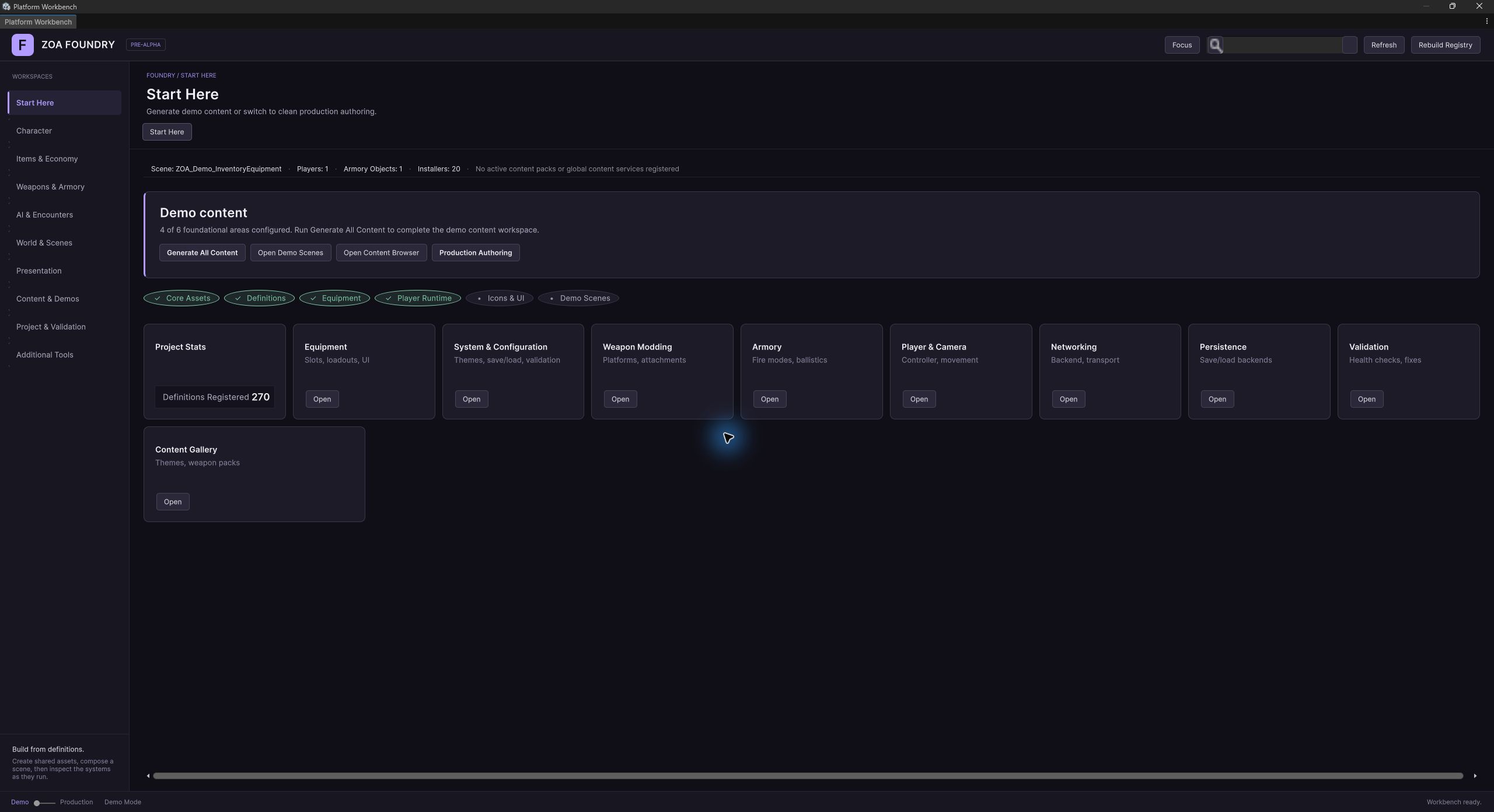
The stages are Scope, Scan, Resolve, Preview, and Apply. Review the scanned candidates and taxonomy assignments before creating a batch.
Read the package reference →Author behavior and inspect an agent
The AI hub connects the Behavior Tree Editor to agent and spawner authoring. A behavior tree asset stores nodes, their parameters, and their child relationships. The runtime resolves that data into executable behavior.
In AI & Encounters, use Create AI to configure an agent and Build AI Prefab to create its prefab. Create Spawner guides you through a spawn setup; Spawners and Agent Definitions let you edit existing assets. In Play mode, the Agents view shows registered agents and their current states.
Perception and tactical behavior depend on the services installed in the scene. An agent definition alone doesn’t establish that cover, vantage, or suppression behavior is active.
Read the package reference →Choose content and compose its HUD
The Content Browser keeps package samples, Content Sets, and generated demo scenes accessible from the editor. A Content Set is backed by FeatureSetDefinition, which references packs for optional areas such as weapons, input, audio, items, and a demo scene.
Feature Set HUD Composer lets you select a HUD style and layout profile, inspect panel definitions, and adjust their layout. Its component authoring controls connect a HUD component definition to a binder and the theme tokens it needs.
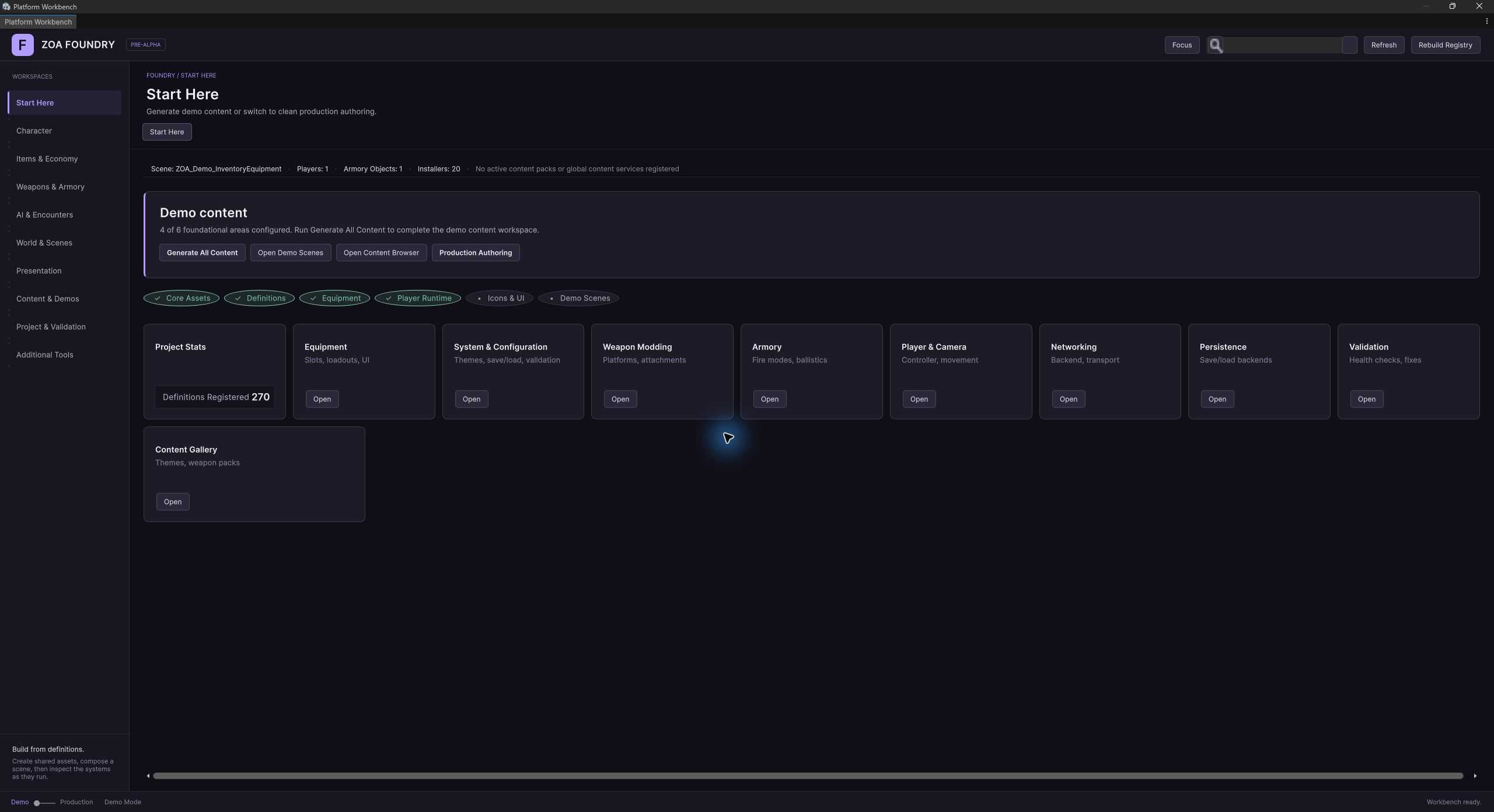
Use Content Set status and validation to check which assets are installed. A set can have empty dimensions or missing content; inspect the selected set before relying on it for a scene.
Read the package reference →Inspect configuration and runtime state
Open Project & Validation for persistence, networking, and diagnostics. Themes and rendering tools live under Presentation. Use the validation results to find missing setup, then open the relevant tool to address it.
The scene context panels show detected objects and offer actions such as opening the relevant tool or selecting an object. They help connect what you’re authoring to what is already present in the open scene.
Checks have a defined scope. Read the reported result and test the actual interaction in a scene; a clean authoring step is one part of verification.
Read the package reference →