Game systems and editor tools for Unity
Build the systems
your game needs.
Create a player, pack an inventory, and put a weapon in their hands. ZOA Foundry brings these connected game systems to Unity, with a Workbench for creating content and C# packages you can extend.
Pre-alpha · Unity 6.4 development target · 51 packages in the reference
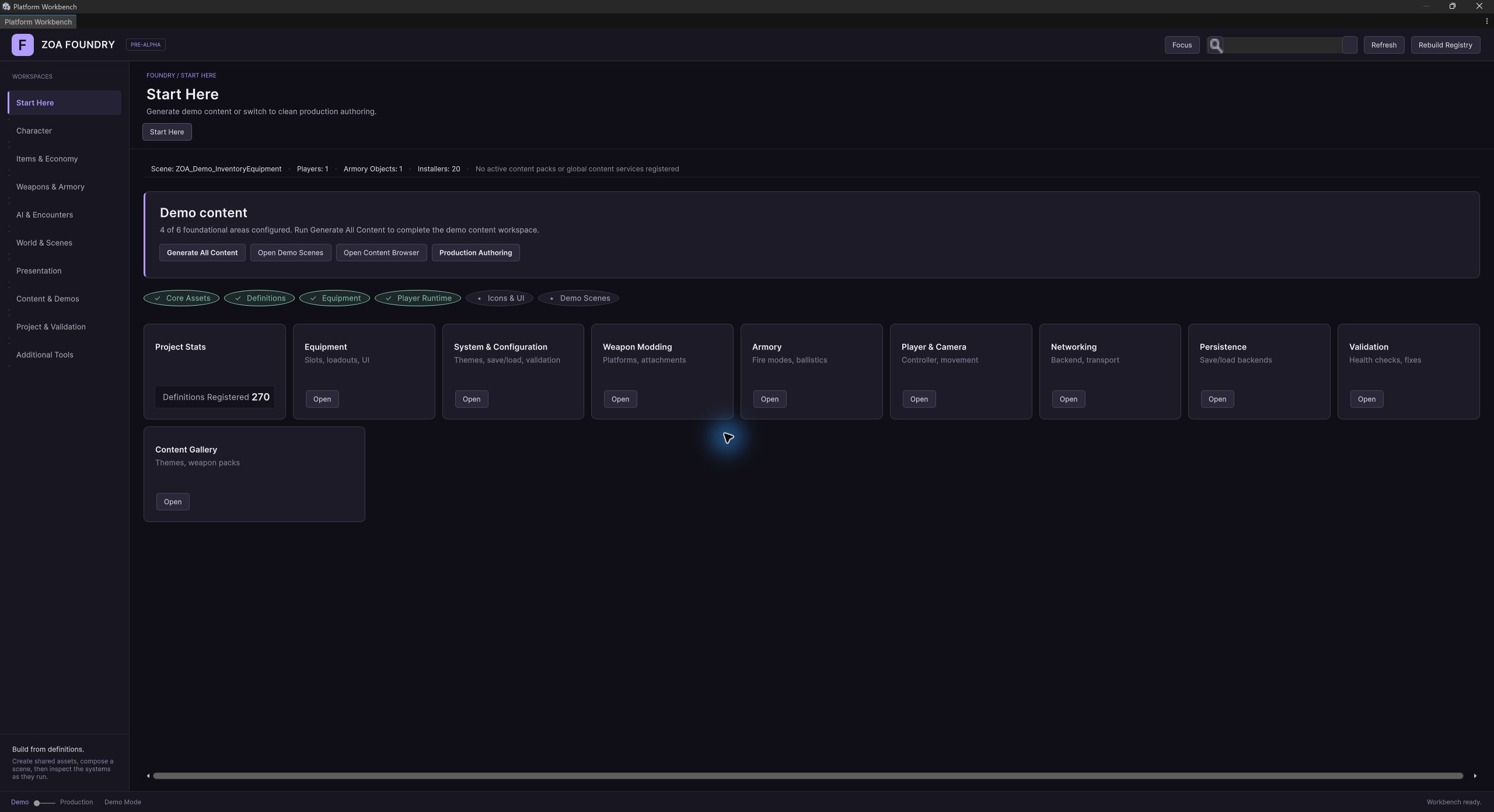
Inside the Workbench
Choose what to build.
Choose a workspace for your character, inventory, weapons, or encounters. Related tools stay together, and guided wizards help you create the assets each system needs.
Build a player for your game
Choose a controller profile and camera view in Player Control. Configure movement and presentation, then build a prefab that your scenes can spawn.
Explore this system Items and equipmentSet up an inventory
Set an item’s footprint, weight, and stack limit. Define which containers and equipment slots accept it. Inventory and Equipment use those definitions when the player picks up, moves, or equips an item.
Explore this system Weapons and attachmentsBuild a weapon from its parts
Map a model’s mount points, choose compatible attachments, and assign an operation profile. Tune firing and reload behavior in separate assets you can reuse across weapons.
Explore this system AI authoringSet up an encounter
Build a behavior tree, assign it to an AI agent definition, and compose a spawn roster. Inspect agents as they run to check which behavior is active and what they perceive.
Explore this systemReusable game content
Tune a weapon.
Use it across your game.
Define a rifle’s attachment mounts and give it an operation profile for firing, recoil, and reloads. Reuse that profile for variants that should handle the same way.
Each rifle in play keeps its own attachments, ammunition, and heat. You can adjust shared settings without mixing up the state of the weapons your players carry.
Learn how definitions and runtime state fit together →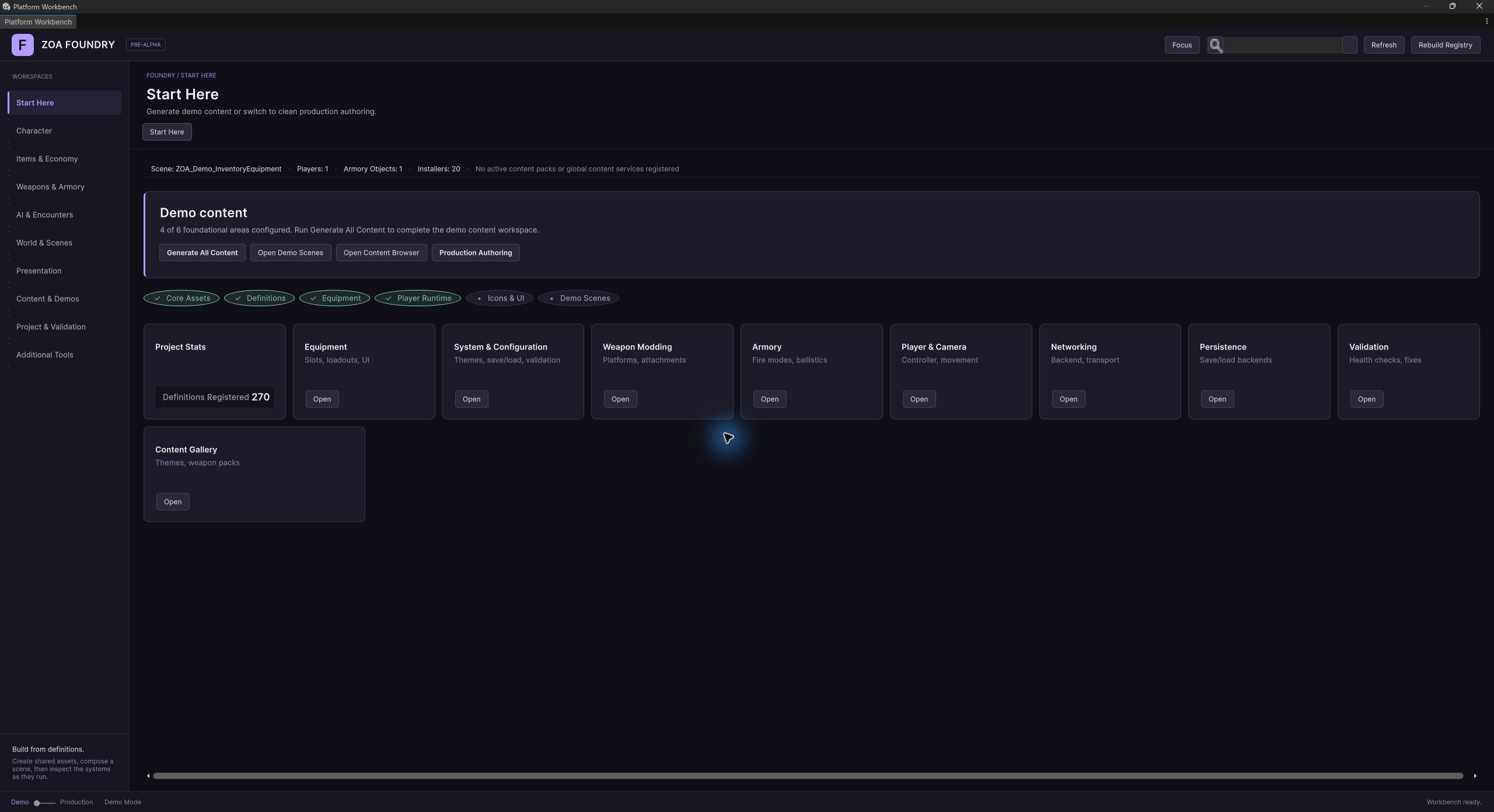
Bring your models
Turn a folder of models into weapon content.
Batch Weapon Ingest scans your FBX files and suggests how to classify them. Check its choices and preview the assets it will create before applying the import. For models that need individual attention, open the weapon wizard and alignment tools.
See the weapon import tools →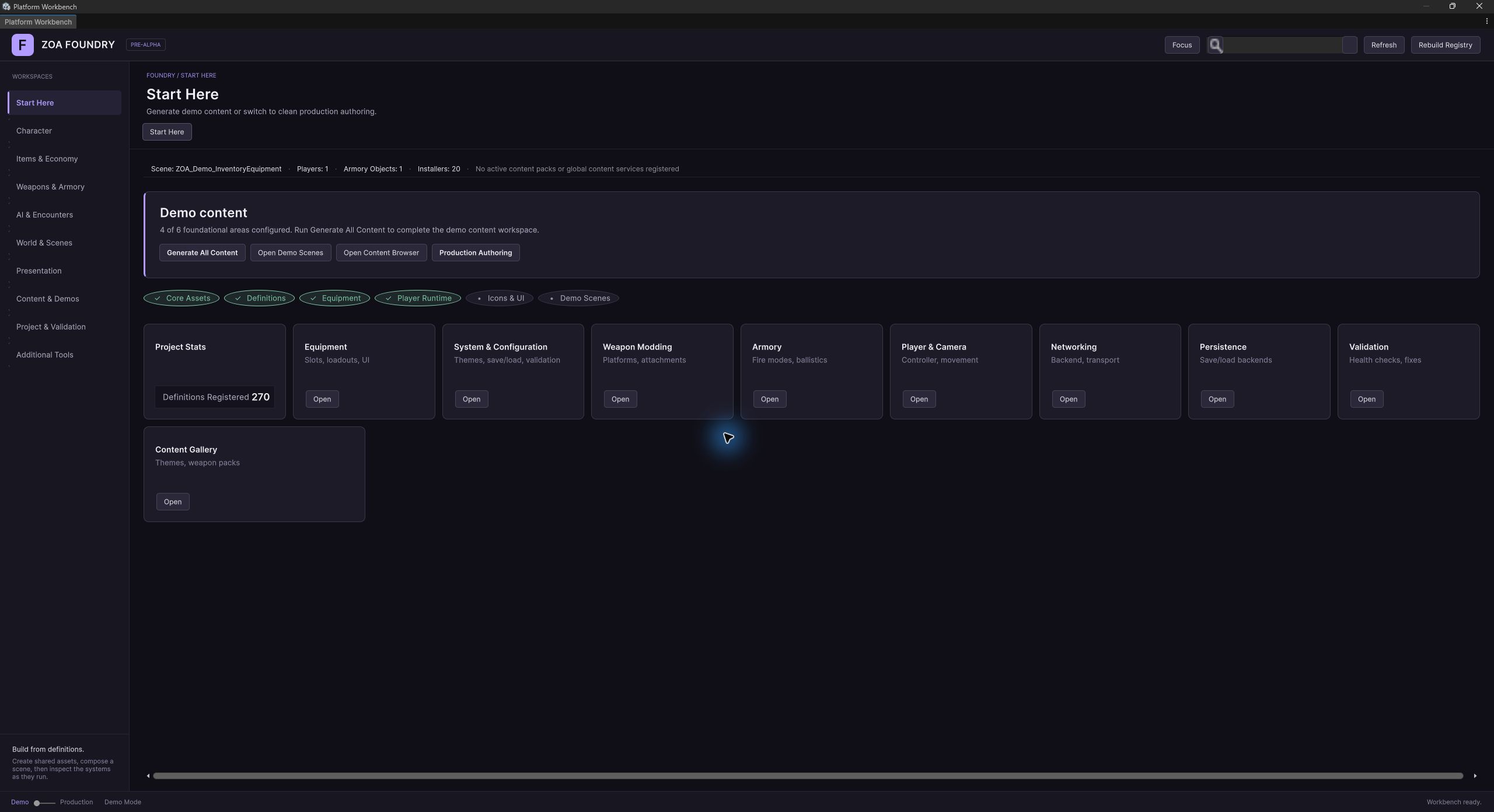
Try it in Unity
Learn by playing with the systems.
Move supplies into a backpack in Inventory & Equipment, or test a loadout on the Weapon Combat Range. Generate a demo from the Content Browser, then open its scene and follow the assets behind each interaction.
Find a demo to start with →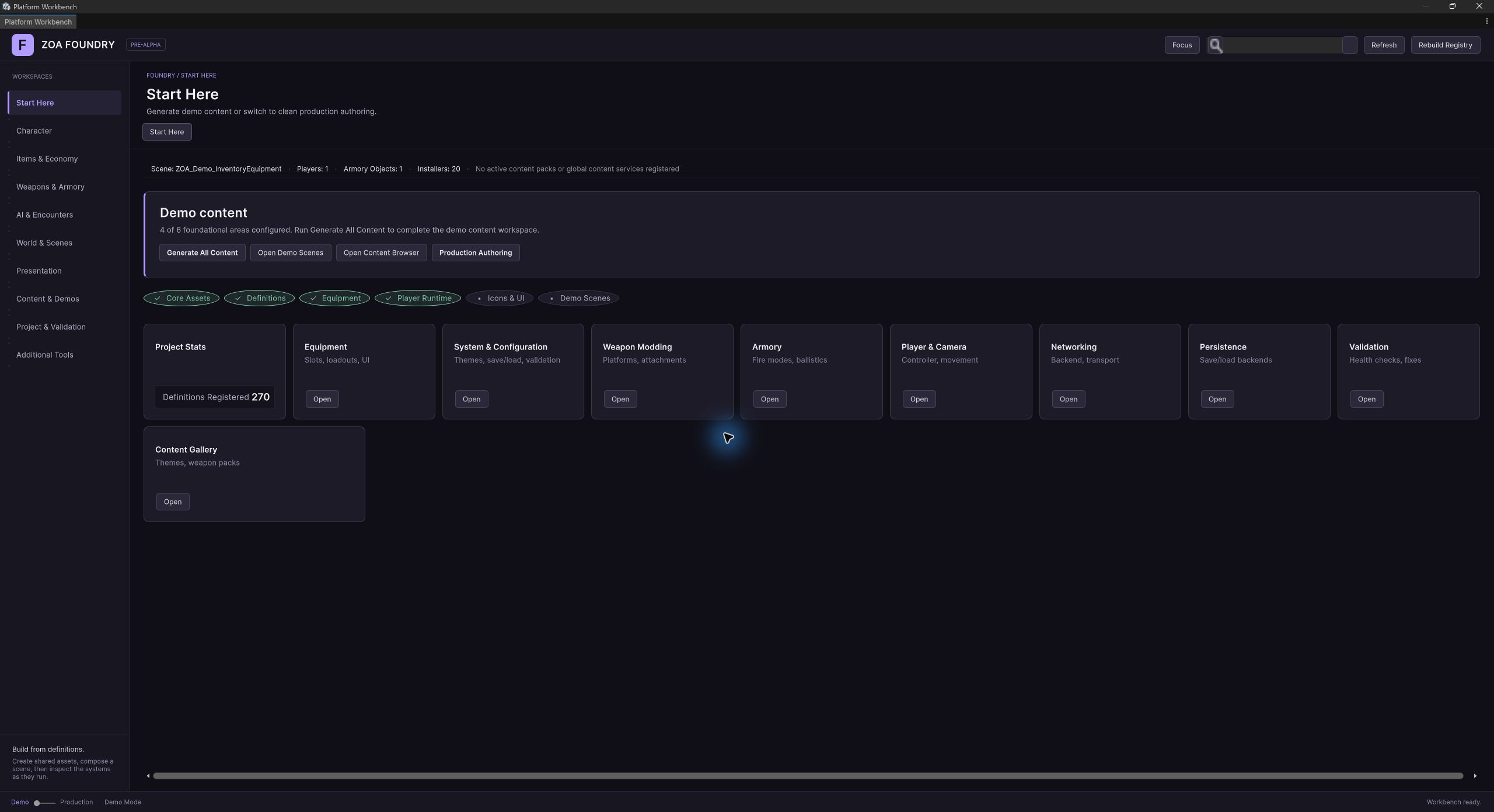
For developers
Follow the code behind the tool.
Foundry’s C# packages expose definitions, runtime models, and service interfaces. Use the package reference to find the types behind an editor workflow and the integration points for your own code.
Find the code you need.
Each package reference explains its main types, editor tools, and dependencies. If you’re adding Foundry to an existing project, check its assembly references too; some pre-alpha manifests are still incomplete.
Start with the supported integrations.
The core demo workflows target URP and FishNet. A separate HDRP adapter and experimental networking integrations are documented with their setup requirements and limits.
Get oriented
Open the Workbench.
Choose your first workflow.
The setup guide covers the development checkout, configuration assets, and your first generated scene.
Read the setup guide