ZOA Equipment
Author equipment slots and manage what an actor wears or holds.
Equipment manages what an actor wears and holds. Define the available slots and which items they accept, then use the runtime services to equip or remove an item.
Slots build on Inventory’s container rules. Visual attachments are configured through the actor’s rig and presentation components, so accepting a helmet and displaying it on the character are separate setup steps.
Tooling
Editor tools
Equipment Control Center
Tools > ZOA > Advanced > Build > Items > Equipment > Control Center
The UI Toolkit operations dashboard for the whole item stack, with a left navigation rail: Setup and Health, Networking, Integrations, Live Debug, Definitions, Icon Studio, Cleanup Project, Settings, Documentation, and Support. Live Debug subdivides into Scene, Inventories, Equipment, Containers, Container Items, and Weapon Modding, giving a play-mode inspector for runtime state without adding a HUD to the scene. It is editor-only and designed to be safe to leave in a project.
Definition Studio
A single browser and creator for every DefinitionBase type in the project, with a second tab for the weapon taxonomy workflow of sets, families, classes, and models. Reach it through the Equipment Workbench module's Definitions capability.
Icon Studio
Tools > ZOA > Advanced > Build > UI > Icon Studio
The interactive front end for Foundation's icon generator: pick a definition and its icon prefab, frame the render with mouse drag, tune the render options, and bake the icon and silhouette. The menu item routes into the Workbench; OpenStandaloneWindow opens it floating.
Weapon Content Pack Installer
Tools > ZOA > Advanced > Generate > Weapons > Content Packs > Installer
Discovers weapon_pack.json manifests from the armory package samples and from Assets/Samples, then installs taxonomy, weapons, and attachments into the project as definition assets.
Equipment UI Theme Manager
Tools > ZOA > Advanced > Define > UI > Themes > Equipment > Theme Manager
IMGUI browser and editor for ZOAEquipmentUiThemeAsset assets, with search, an embedded inspector, and preset installation into a chosen folder. A companion Theme Sandbox window renders sample IMGUI controls through the active theme so a colour change can be judged before it ships.
Regenerate Equipment-Theme Stylesheets
Tools > ZOA > Advanced > Generate > UI > Themes
Reads the legacy theme asset's nine-colour schema and emits the canonical --zoa-* USS variable table, deriving the remaining tokens from those colours plus constants. A UI Toolkit HUD then retokens when a legacy theme is selected.
Equipment Workbench module
ZOA Workbench > Equipment
Registered at order 130 under the items-and-economy workflow lane. Capabilities: Definitions for slots and loadouts, UI Themes routing to the unified theme selector, Diagnostics embedding the Control Centre, the Content Pack Installer, API Compatibility, and Icon Studio.
Scene installer and maintenance check
ZOAEquipmentSceneInstaller installs only the runtime the packages need into an arbitrary scene, with options for services, an EventSystem, the inventory UI screen, the debug HUD, and the weapon inspector, plus an option to place the runtime in a separate additive scene. ZOAEquipmentSceneMaintenanceCheck analyses a scene and proposes fixes for common misconfigurations, leaving the applying to you.
From the development project
Screenshots
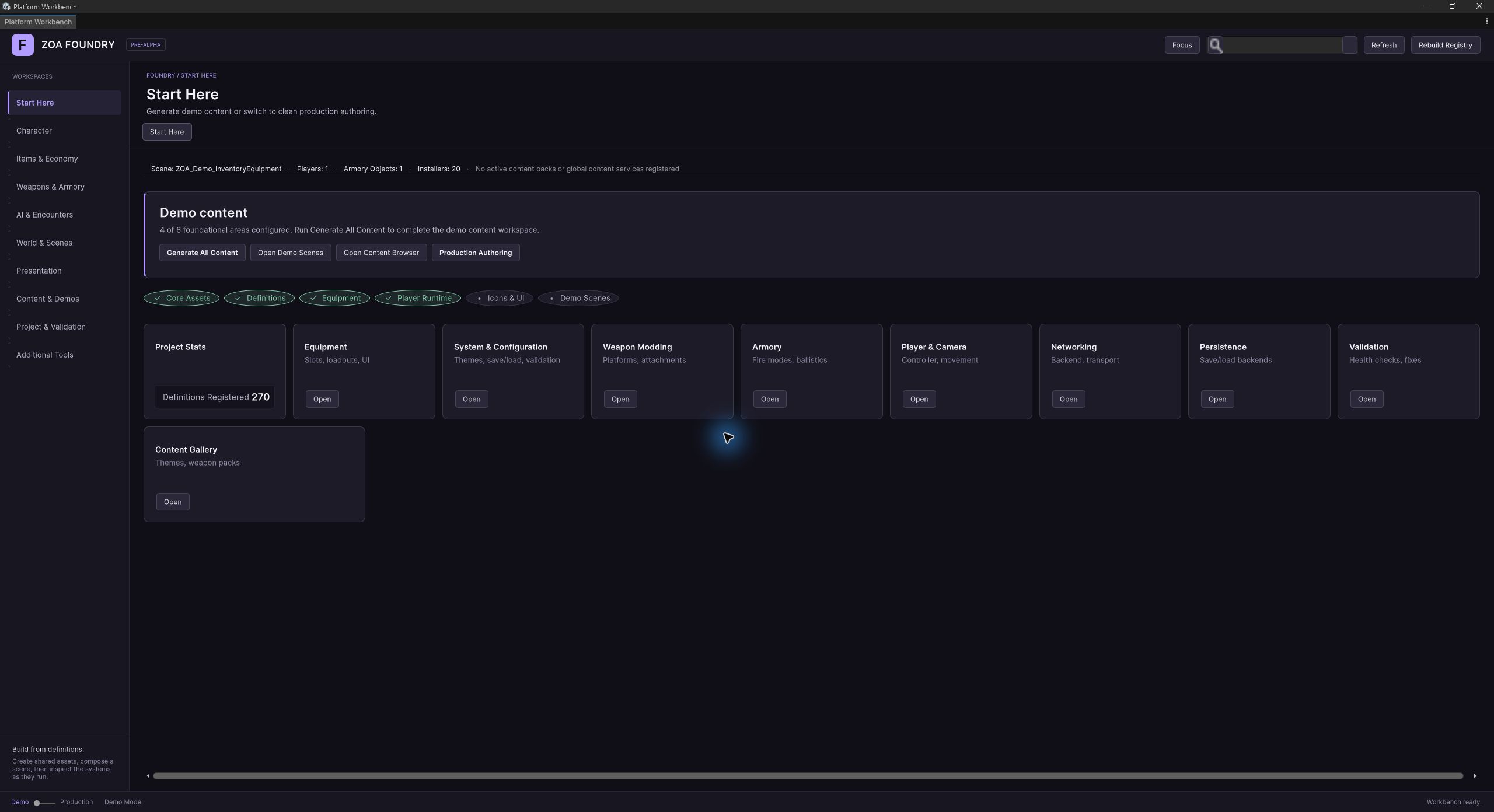
Declared ZOA dependencies (11)
Referenced by ZOA manifests (5)
How it works
Concepts
A slot is an inventory, which is why nothing needs special-casing
EquipmentSlotDefinition extends InventoryDefinition and adds four things: a stable slot id, an optional icon, a normalised rect for placing the slot on a silhouette panel, and an attach-path hint that view systems use to parent visuals to a bone. Everything else, the shape and the rule set, it inherits. A typical slot is a Bag(1) or a 1x1 grid whose rule set carries an AllowByTagConstraint requiring equip:Chest.
EquipmentComponent reads an EquipmentLoadoutDefinition, builds one child InventoryComponent per slot, and keys them by lowercased slot id. Equipping then reduces to source.TryMoveTo(itemId, slotInventory, ...), and slot acceptance is whatever the slot's rule set says. There is no parallel "can this item go in this slot" code path to keep in sync with the inventory rules, because there is no second model.
The swap path is where the reduction earns its keep. When a slot is occupied and swapping is allowed, the component moves the existing item out to a target inventory, then moves the new item in, and if the second move fails it moves the original back. Because both legs are ordinary inventory transfers with their own reason strings, a failed swap reports which half failed rather than leaving the player with an empty slot and a missing item.
Slot compatibility is a tag convention, discoverable through EquipSlotIds
An item advertises where it can go by carrying a tag of the form equip:<slotId> in its DefinitionBase.Tags list. EquipSlotIds is the central place those ids are named: the weapon slots PrimaryWeapon, SecondaryWeapon, Sidearm, and Melee, and the armour slots Head, Chest, Legs, Feet, Hands, Belt, Back, and Backpack. ToTag, ExtractSlotIdsFromTags, and HasSlotTag are the helpers that assemble and read the convention.
Nothing forces a project to use those constants: any string is a valid slot id. They exist so first-party callers, the player factory and the weapon importer among them, refer to slots by name rather than by a string typed from memory. WeaponSlotOrder additionally fixes the mapping from the 1 through 4 hotkeys to slots, and IsWeaponSlot is what filters equipment changes down to the ones that should drive in-hand weapon spawning.
Auto-equip walks slots in declaration order and asks the rules
IEquipmentService.TryFindFirstFreeValidSlot iterates the loadout's slots in declaration order and returns the first empty one whose rule engine accepts the item. Validity is never re-derived here: the service delegates to the slot inventory's constraints, which is the same machinery that governs a manual drag. Declaration order therefore doubles as priority, so a loadout author controls whether a rifle lands in Primary or Secondary by ordering the list.
TryPickupAutoEquip is the composed pickup flow: add to the bag, then look for a free valid slot, then equip. Its return contract is asymmetric. It returns false only when the inventory itself refused the item; a successful add followed by no free slot is still success, with slotIdIfEquipped set to null. That is the correct answer for a pickup, because the player has the item and can drag it to a slot themselves.
Drag and drop is rotation-aware and spans three drop target kinds
ZOAInventoryDragManager owns a drag from OnBeginDrag to OnEndDrag, tracking the dragged ZOAItemIcon, the source inventory, the original parent and anchored position for cancellation, and the current drag orientation. Rotation during a drag is bound through an InputActionProperty resolved by Foundation's input helper, so the item can be turned mid-flight and the drop applies move and rotation as one atomic grid operation rather than as a move followed by a rotate that might fail.
The manager tracks the last hovered target across three different kinds: a ZOAGridRenderer cell region, a ZOAEquipmentSlotUI, and a weapon mount point in the modding inspector. Each gets a validity highlight while hovered, which is why a drag over a full grid, an incompatible slot, and a wrong-type mount all read differently before the player commits. Networked scenes route the resulting move through IZOANetworkInventorySync rather than mutating locally.
Grid rendering is a pooled custom layout
ZOAGridRenderer implements ILayoutElement and positions cells itself from a cell size and spacing, because a Tetris-style grid with multi-cell items cannot be expressed by a grid layout group: items span cells, and their pixel size derives from the oriented footprint rather than from a uniform element size. The renderer reports preferred width and height from the grid dimensions, so the panel still participates in a surrounding layout.
Cells and item icons come from ZOAUiPool<T>, so opening a large container does not allocate a fresh hierarchy. TryGetCoord converts a local pointer position to a GridCoord and GetSnapPosition converts back, which is the entire coordinate bridge between the pointer and the domain model. HighlightArea paints a valid or invalid overlay across a rectangle, which is how the drop preview shows a 2x4 footprint rather than a single cell.
Windows are registered, and modality is arbitrated centrally
Every top-level runtime surface implements IZOAUiWindow: a stable window id, a title, visibility, a modal flag, a state-changed event, and Show/Hide/Toggle. The inventory screen, the debug HUD, the key-bindings viewer, and the weapon modding inspector all satisfy it. ZOAEquipmentUiWindowManager keeps the roster, resolves a window by id, and enforces that only one modal window is open at a time.
Cursor and input policy follow from that roster. The inventory screen is modal and unlocks the cursor while visible through Foundation's reference-counted ZOACursorCapture, and gameplay input is suppressed through ZOAInputSuppression while a modal surface is up. Because both of those are reference-counted rather than boolean, closing one panel while another is still open does not hand control back to the camera prematurely.
Theming resolves forward, with the legacy asset as a fallback
New UI resolves an IZOAThemeService from the service registry through ZOAEquipmentProjectTheme and reads a ZOAUiThemeResolvedView. The older path, ZOAEquipmentUiThemeAsset driven by ZOAEquipmentUiThemeManager, is still live for scenes and IMGUI surfaces that were authored against it, and components such as ZOAGridCell subscribe to both so a project can migrate incrementally.
ZOAEquipmentUiThemeManager is an IMGUI theming layer: Begin returns a disposable scope that swaps GUI.skin and hands back a prepared style set, with the built skin cached by the theme's id plus version so a theme edit rebuilds it and a repaint does not. It must only be called from OnGUI, since it mutates GUI.skin.
The bridge between the two worlds is a generator. ZOAEquipmentThemeVariablesGenerator reads the legacy asset's nine-colour schema and emits the canonical --zoa-* USS variable table, deriving the tokens the modern stylesheets expect from those colours plus constants. That is how a legacy theme picked in the content pack browser still retokens a UI Toolkit HUD.
Runtime weapon presets are a player-facing store
IWeaponRuntimePresetService lets a player save, apply, and delete named attachment loadouts at runtime, keyed by weapon definition id and preset name. Entries reference attachments by definition id and mount path rather than by scene object, so applying a preset sources matching items from the player's context inventory instead of conjuring them.
The implementation is a save-package owner, so presets persist through the persistence package's ownership registry rather than through a bespoke file. Editor-authored weapon preset assets remain a separate concept: this contract is the runtime store the player writes to.
Setup
Workflow
- 01
Author the slots
Create one EquipmentSlotDefinition per slot. Give it a Bag(1) or 1x1 grid shape, a rule set whose AllowByTagConstraint requires the matching equip tag, and a slot id. Prefer the EquipSlotIds constants for the id so first-party tooling recognises it, and set the UI rect if the slot appears on a doll panel.
- 02
Assemble a loadout
Add the slots to an EquipmentLoadoutDefinition in the order you want auto-equip to consider them. Duplicate and empty ids are reported on validate, so fix those before the loadout is used. One loadout is normally shared by every character with the same body plan.
- 03
Tag the items
Add an equip:<slotId> tag to each ItemDefinition that should be equippable, using EquipSlotIds.ToTag rather than typing the string. The tag is what the slot's constraint reads, so an item with no tag is simply never accepted by any slot, which is the correct default for loot.
- 04
Wire the character
Add an EquipmentComponent and assign the loadout. It builds a child InventoryComponent per slot on Awake, or you can pre-author the children and turn auto-create off. Add a PlayerInventoryEquipmentRegistrar so the rig publishes itself to both services once the scene installers have run.
- 05
Install the scene runtime
Add a ZOAEquipmentRuntime to the scene root so an IEquipmentService is registered before consumers Awake, alongside the inventory and loot installers. ZOAEquipmentSceneInstaller does the same job at author time from the editor, with options for the EventSystem, the inventory UI screen, the debug HUD, and the weapon inspector.
- 06
Add the runtime UI
Call ZOAInventoryUIScreen.BuildDefaultHierarchy or install it through the scene installer. It creates the screen and its drag manager together; AutoLinkComponents resolves the player inventory and equipment references at runtime, so a rig spawned after the screen still binds.
- 07
Verify from the Control Centre
Open Tools > ZOA > Advanced > Build > Items > Equipment > Control Center. The Setup and Health tab checks the GameDatabase and scene wiring, and the Live Debug tab inspects inventories, equipment, containers, container items, and weapon modding state while in play mode, which is faster than adding a debug HUD to answer a single question.
Reference
Key types
EquipmentComponent
component
Owns one child InventoryComponent per slot in a loadout, keyed by normalised slot id. The type gameplay code holds when it wants to equip, unequip, or read what a character is wearing.
- EquipmentLoadoutDefinition LoadoutDefinition
- IReadOnlyList<InventoryComponent> SlotInventories
- void BuildSlots()
- bool TryGetSlotInventory(string slotId, out InventoryComponent slotInventory)
- bool TryGetEquippedItem(string slotId, out ItemInstance item)
- bool TryEquipFromInventory(InventoryComponent source, InstanceId itemInstanceId, string slotId, out string reason, bool allowSwap = true, InventoryComponent unequipTo = null, int quantityToMove = int.MaxValue)
- bool TryUnequipToInventory(string slotId, InventoryComponent target, out string reason)
- bool TryUnequipAllToInventory(InventoryComponent target)
- void Configure(EquipmentLoadoutDefinition definition, Transform slotRootOverride = null, bool autoCreateSlots = true, GameDatabase databaseOverride = null)
- event Action Changed
EquipmentSlotId
struct
Value type wrapping a slot identifier. Trimmed on construction and compared case-insensitively, so a slot authored as "Chest" and referenced as "chest" resolve to the same slot instead of silently missing.
- readonly string Value
- static EquipmentSlotId Empty
- static EquipmentSlotId From(string value)
- bool IsEmpty
EquipSlotIds
class
The canonical slot id constants and the equip-tag convention. Nothing enforces them, but a weapon importer and a player factory that both read from here agree on spelling with no shared enum.
- const string WeaponPrimary, WeaponSecondary, WeaponSidearm, WeaponMelee
- const string Head, Chest, Legs, Feet, Hands, Belt, Back, Backpack
- static readonly string[] WeaponSlotOrder
- static bool IsWeaponSlot(string slotId)
- static string ToTag(string slotId)
- static IEnumerable<string> ExtractSlotIdsFromTags(IReadOnlyList<string> tags)
- static bool HasSlotTag(IReadOnlyList<string> tags, string slotId)
IEquipmentService
service
The runtime seam over EquipmentComponent. Registers the player's equipment, finds the first free slot whose rules accept an item, and composes the full pickup-to-slot path in one call.
- EquipmentComponent PlayerEquipment
- void RegisterPlayerEquipment(EquipmentComponent equipment)
- bool TryFindFirstFreeValidSlot(EquipmentComponent equipment, ItemInstance item, out string slotId, out string reason)
- bool TryEquipFromInventory(InventoryComponent source, InstanceId itemId, EquipmentComponent equipment, string slotId, out string reason)
- bool TryUnequipToInventory(EquipmentComponent equipment, string slotId, InventoryComponent target, out string reason)
- bool TryPickupAutoEquip(InventoryComponent inventory, EquipmentComponent equipment, ItemInstance item, out string slotIdIfEquipped, out string reason)
- event Action<EquipmentComponent> PlayerEquipmentRegistered
ZOAEquipmentRuntime
component
Scene-root bootstrap at execution order -9450 that registers an EquipmentService, reusing any pre-registered override so a custom service is never stomped. Optionally survives scene loads.
- IEquipmentService Service
- void EnsureRegistered()
- void HandleDestroy()
PlayerInventoryEquipmentRegistrar
component
Dropped on the player rig at execution order -9000, after the scene installers have registered their services. Registers the local inventory and equipment components with both services, and unregisters on destroy only when the local rig is still the registered one.
- void RegisterAll()
- void UnregisterAll()
IZOAUiWindow
interface
The contract every top-level runtime surface implements. The window manager arbitrates on the modal flag, and input bindings and debug tooling address a window by its id with no direct reference.
- string WindowId
- string WindowTitle
- bool IsVisible
- bool IsModal
- event Action<IZOAUiWindow, bool> StateChanged
- void Show()
- void Hide()
- void Toggle()
ZOAEquipmentUiWindowManager
component
Scene-level registry of runtime windows at execution order -100. Resolves a window by id, broadcasts registration and state changes, and enforces single-modal-at-a-time.
- static ZOAEquipmentUiWindowManager Instance
- void RegisterWindow(IZOAUiWindow window)
- void ShowWindow(string windowId)
- void HideAll()
- IZOAUiWindow FindWindow(string windowId)
- bool IsAnyModalOpen
ZOAInventoryUIScreen
component
The production uGUI inventory screen and the largest single type in the package. Hosts the player grid, the equipment doll, loot and backpack panels, item details, comparison, sorting, take-all, context actions, and auto-equip. Implements IZOAUiWindow and the loot package's browse surface.
- static ZOAInventoryUIScreen BuildDefaultHierarchy(Transform parent = null, string name = "ZOAInventoryUI")
- InventoryComponent PlayerInventory / LootInventory
- EquipmentComponent PlayerEquipment
- void Show() / Hide() / Toggle() / Refresh()
- void OpenLoot(InventoryComponent inventory, string title = "Loot")
- void OpenBackpack(ItemInstance item, ContainerItemDefinition def)
- void RequestSort(ZOAInventoryPanel panel) / ConfirmSort() / CancelSort()
- void TakeAll(ZOAInventoryPanel panel)
- bool TryAutoEquip(ItemInstance item, InventoryComponent sourceInventory)
- void AutoLinkComponents()
ZOAGridRenderer
component
Custom spatial grid renderer for multi-cell items. Positions pooled cells and icons itself rather than using a layout group, and owns the pointer-to-coordinate conversion the drag manager depends on.
- InventoryComponent Inventory
- void SetRuntime(InventoryRuntime runtime)
- void Refresh()
- bool TryGetCoord(Vector2 localPos, out GridCoord coord)
- Vector2 GetSnapPosition(GridCoord coord)
- void HighlightArea(int startRow, int startCol, int width, int height, bool valid)
- void ClearHighlights()
ZOAItemIcon
component
One item's visual in a grid: icon, rarity background, quantity, durability bar, found-in-raid and pinned markers, and the player's colour tag. Implements the pointer and drag handlers, and carries the current orientation so a rotated drag renders rotated.
- ItemInstance Item
- InventoryRuntime SourceRuntime
- InventoryComponent SourceInventory
- Orientation CurrentOrientation
- void Setup(ItemInstance item, InventoryRuntime sourceRuntime, InventoryComponent sourceInventory = null, Orientation orientation = Orientation.Normal)
ZOAInventoryDragManager
component
Arbitrates a drag across grids, equipment slots, and weapon mount points, applying rotation and placement as one operation on drop and restoring the original parent and position on cancel.
- bool IsDragging
- ZOAItemIcon DraggedIcon
- void Configure(Canvas targetCanvas, RectTransform customDragLayer = null)
- void OnBeginDrag(ZOAItemIcon icon, PointerEventData eventData)
- void OnEndDrag(PointerEventData eventData)
ZOAEquipmentPanel
component
Renders the character doll: one pooled ZOAEquipmentSlotUI per slot in the loadout, positioned from each slot definition's normalised UI rect, over an optional silhouette image supplied by the theme.
- EquipmentComponent Equipment
- EquipmentLoadoutDefinition LoadoutDefinition
- IReadOnlyList<ZOAEquipmentSlotUI> ActiveSlots
- bool ShowSilhouetteImage
- void Refresh()
ZOAEquipmentSlotUI
component
A single doll slot. Shows a ghost icon when empty, the equipped item when full, and a valid or invalid highlight during a drag. CanAccept forwards to the slot inventory's rule engine, so the highlight tells the truth.
- string SlotId
- void Setup(string id, EquipmentComponent equipment)
- void Refresh()
- void SetHighlight(bool visible, bool valid = true)
- bool CanAccept(ItemInstance item)
- bool TryEquip(InventoryComponent source, ItemInstance item, out string reason)
ZOAUiPool<T>
class
A minimal component pool for UI elements, with explicit Track and Untrack so an element handed to a drag layer mid-drag can leave the pool's active set and return to it afterwards.
- T Get()
- void Return(T element)
- void ReturnAll()
- void Track(T element)
- void Untrack(T element)
- IReadOnlyList<T> ActiveElements
ZOAEquipmentUiThemeManager
class
IMGUI theming for editor-adjacent and debug surfaces. Begin returns a disposable scope that swaps GUI.skin and yields prepared styles; the built skin is cached by theme id plus version so an edit rebuilds and a repaint does not. OnGUI only.
- static ZOAEquipmentUiThemeAsset ActiveTheme
- static ImGuiThemeScope Begin(ZOAEquipmentUiThemeAsset overrideTheme = null)
- static ImGuiThemeScope Begin(ZOAEquipmentUiThemeAsset overrideTheme, out ZOAEquipmentUiThemeRuntimeStyles themeStyles)
- static event Action<ZOAEquipmentUiThemeAsset> ActiveThemeChanged
ZOAEquipmentUiThemeApplier
component
Applies one theme token to a uGUI graphic. The TargetToken enum names the surface roles (window, panel, slot, border, text, accent, success, danger, button states, doll background, silhouette, crosshair) so a scene is themed by tagging elements rather than by wiring colours.
- void ApplyTheme(ZOAUiThemeResolvedView theme)
- void ApplyTheme(ZOAEquipmentUiThemeAsset theme)
IWeaponRuntimePresetService
service
The player-facing runtime store for named attachment loadouts. Entries reference attachments by definition id and mount path, so applying a preset draws matching items from the player's inventory instead of spawning them.
- bool SavePreset(WeaponRuntimePreset preset, out string reason)
- IReadOnlyList<WeaponRuntimePreset> GetPresetsFor(string weaponDefinitionId)
- bool TryGetPreset(string weaponDefinitionId, string presetName, out WeaponRuntimePreset preset)
- bool DeletePreset(string weaponDefinitionId, string presetName)
- event Action PresetsChanged
ZOAEquipmentDebugHUD
component
Play-mode diagnostic surface for the whole item stack, implementing both IZOAUiWindow and Foundation's IZOADebugComponent under the Inventory debug category, so the production gate can suppress it wholesale in a release build.
- ZOADebugCategory DebugCategory
- string DebugLabel
- void SetDiagnosticsActive(bool active)
- void Toggle()
ZOAPlayerEquipmentVisuals
component
Drives modular character meshes from equipped state. Each binding names a slot and matches by definition or by required item tag, then shows one set of renderers and objects and hides another, which is how armour swaps a body mesh without a bespoke script per piece.
- EquipmentComponent Equipment
- List<EquipmentVisualBinding> VisualBindings
- void RefreshVisuals()
ZOAIconService
component
Scene-level icon cache keyed by DefinitionId with a default silhouette fallback, so repeated grid refreshes resolve sprites without re-walking definitions.
- static ZOAIconService Instance
- Sprite GetIcon(DefinitionId definitionId)
- void RegisterIcon(DefinitionId definitionId, Sprite sprite)
- void ClearCache()
Reference
Authoring assets
EquipmentSlotDefinition
asset
A single slot, authored as a specialised InventoryDefinition so it carries a shape, a rule set, and capabilities like any other container. Adds the slot id, an icon, a normalised rect for silhouette placement, and an attach path for view systems. Tools > ZOA > Equipment > Equipment Slot Definition.
- string SlotId
- string SlotIdNormalized
- Sprite Icon
- Rect UiPosition
- string AttachPath
EquipmentLoadoutDefinition
asset
The ordered set of slots a character has. Order is meaningful: auto-equip walks it in declaration order, so it doubles as slot priority. OnValidate reports empty and duplicate slot ids. Tools > ZOA > Equipment > Equipment Loadout Definition.
- IReadOnlyList<EquipmentSlotDefinition> Slots
- bool TryGetSlot(string slotId, out EquipmentSlotDefinition slot)
ZOAEquipmentUiThemeAsset
asset
The legacy per-package UI theme: identity, a colour set, per-slot layout overrides, and archetype icons. Still consumed by IMGUI surfaces and by scenes not yet migrated to the project-wide theme service. ZOA > Equipment > UI Theme.
- string ThemeId, string DisplayName, int Version
- string CacheKey
- Color WindowBackgroundColor, PanelBackgroundColor, SlotBackgroundColor, ...
ZOAEquipmentUiThemePack
asset
A named collection of theme assets installed or previewed as a unit, which is what the content pack browser offers when a genre bundle names a UI theme. ZOA > Equipment > UI Theme Pack.
- string PackName
- IReadOnlyList<ZOAEquipmentUiThemeAsset> Themes
ZOAEquipmentUiThemeSettings
asset
Runtime-loadable pointer to the active theme, loaded from Resources at ZOA/ThemeSettings so a build can resolve a theme without an editor lookup.
- static ZOAEquipmentUiThemeSettings Instance
- ZOAEquipmentUiThemeAsset activeTheme
- bool requireThemeInResources
Usage
Examples
using ZOA.Equipment.Unity.Components;
using ZOA.Equipment.Unity.Definitions;
using ZOA.Inventory.Unity.Components;

public bool EquipPrimary(EquipmentComponent equipment,
                         InventoryComponent bag,
                         InstanceId itemId)
{
    // An occupied slot swaps: the current occupant moves to unequipTo
    // (defaulting to the source bag) before the new item moves in. A
    // failed second leg rolls the original back into the slot.
    if (!equipment.TryEquipFromInventory(
            bag, itemId, EquipSlotIds.WeaponPrimary, out var reason))
    {
        ShowToast(reason);
        return false;
    }

    return true;
}using ZOA.Equipment.Unity.Services;
using ZOA.Inventory.Core.Items;
using ZOA.Messaging;
public void OnPickedUp(ItemInstance item)
{
if (!FoundryServiceRegistry.TryResolve<IEquipmentService>(out var equip))
return;
var ok = equip.TryPickupAutoEquip(
_playerInventory, _playerEquipment, item,
out var slotIdIfEquipped, out var reason);
// false means the BAG refused: full, or a rule rejection. A
// successful add with no free valid slot is still success, with
// slotIdIfEquipped null.
if (!ok) { ShowToast(reason); return; }
ShowToast(slotIdIfEquipped != null
? $"Equipped to {slotIdIfEquipped}"
: "Added to inventory");
}using ZOA.Equipment.Unity.Definitions;
// Build the tag rather than typing it, so a slot rename is one edit.
var chestTag = EquipSlotIds.ToTag(EquipSlotIds.Chest); // "equip:Chest"
// Read the other way: which slots does this item advertise?
foreach (var slotId in EquipSlotIds.ExtractSlotIdsFromTags(definition.Tags))
Debug.Log($"{definition.DisplayName} fits {slotId}");
// Yes or no for one slot, case-insensitive on the prefix and the id.
bool isHelmet = EquipSlotIds.HasSlotTag(definition.Tags, EquipSlotIds.Head);using System;
using UnityEngine;
using ZOA.Equipment.Unity.RuntimeUI;
using ZOA.Equipment.Unity.UI.Contracts;
public sealed class CraftingScreen : MonoBehaviour, IZOAUiWindow
{
public string WindowId => "crafting";
public string WindowTitle { get; set; } = "Crafting";
public bool IsVisible => _visible;
// Modal windows are arbitrated by the manager: opening this one
// closes any other modal surface rather than stacking two cursors.
public bool IsModal => true;
public event Action<IZOAUiWindow, bool> StateChanged;
private bool _visible;
private void OnEnable() => ZOAEquipmentUiWindowManager.Instance?.RegisterWindow(this);
private void OnDisable() => ZOAEquipmentUiWindowManager.Instance?.UnregisterWindow(this);
public void Show() => SetVisible(true);
public void Hide() => SetVisible(false);
public void Toggle() => SetVisible(!_visible);
private void SetVisible(bool visible)
{
_visible = visible;
StateChanged?.Invoke(this, visible);
}
}using ZOA.Equipment.Unity.UI.InventoryUI;
using ZOA.Inventory.Unity.Components;
public void BrowseCrate(ZOAInventoryUIScreen screen, InventoryComponent crate)
{
// Opens the loot column beside the player's own grid and shows the
// screen. CloseLoot takes the same component, so a crate whose
// interaction range was left mid-browse can close only its own panel.
screen.OpenLoot(crate, title: "Supply Crate");
}
public void StopBrowsing(ZOAInventoryUIScreen screen, InventoryComponent crate)
=> screen.CloseLoot(crate);using UnityEngine;
using ZOA.Equipment.Unity.UI.Theming;
private void OnGUI()
{
// Begin swaps GUI.skin for the active theme and hands back the
// prepared styles; the scope restores the previous skin on dispose.
// OnGUI only, since it mutates GUI.skin.
using (ZOAEquipmentUiThemeManager.Begin(null, out var styles))
{
GUILayout.Label("Loadout", styles.TitleLabel);
GUILayout.Label("Press Tab to close", styles.MiniLabel);
}
}Integration
Behavior to account for
See also